 ABfit
ABfitThis guide shows you everything you need in ABfit – from adding it to your Home Screen to the automatic sync with Apple Health. All pictures come from a sample account “Anna” with made-up data. The pictures show the app in German, its default language; the buttons and menus in the text are named as they appear when the app is set to English (see section 15).
Contents
- Add ABfit to your Home Screen
- Sign in
- The Cockpit, the Day overview and swiping
- Logging food: search, amount, custom foods
- Speak, photo and barcode
- Photograph the nutrition label
- Edit entries and delete several at once
- Day wrap-up, water and AI rating
- Recipes: paste text
- Recipe from a photo
- History: weight and body fat
- Activity: steps and workouts by hand
- Medications
- Settings: profile and goals
- Choose a language (6 languages)
- Change password and account
- Connect Apple Health (shortcut + automation)
- Appearance: Light and Dark
- iPad and computer
- Frequently asked questions
1. Add ABfit to your Home Screen
You do not need to download ABfit from the App Store. You add the web app to your Home Screen once – after that it opens like a normal app, without an address bar.
- Open the ABfit link you received in Safari (not in Chrome or in a chat app).
- Tap the Share icon (square with an arrow pointing up ⬆︎) in the middle at the bottom.
- Scroll down in the list and tap “Add to Home Screen”.
- The name “ABfit” is already filled in – tap Add at the top right.
- The yellow ABfit icon now appears on your Home Screen. From now on, always open ABfit from there.
2. Sign in
- Open ABfit from your Home Screen.
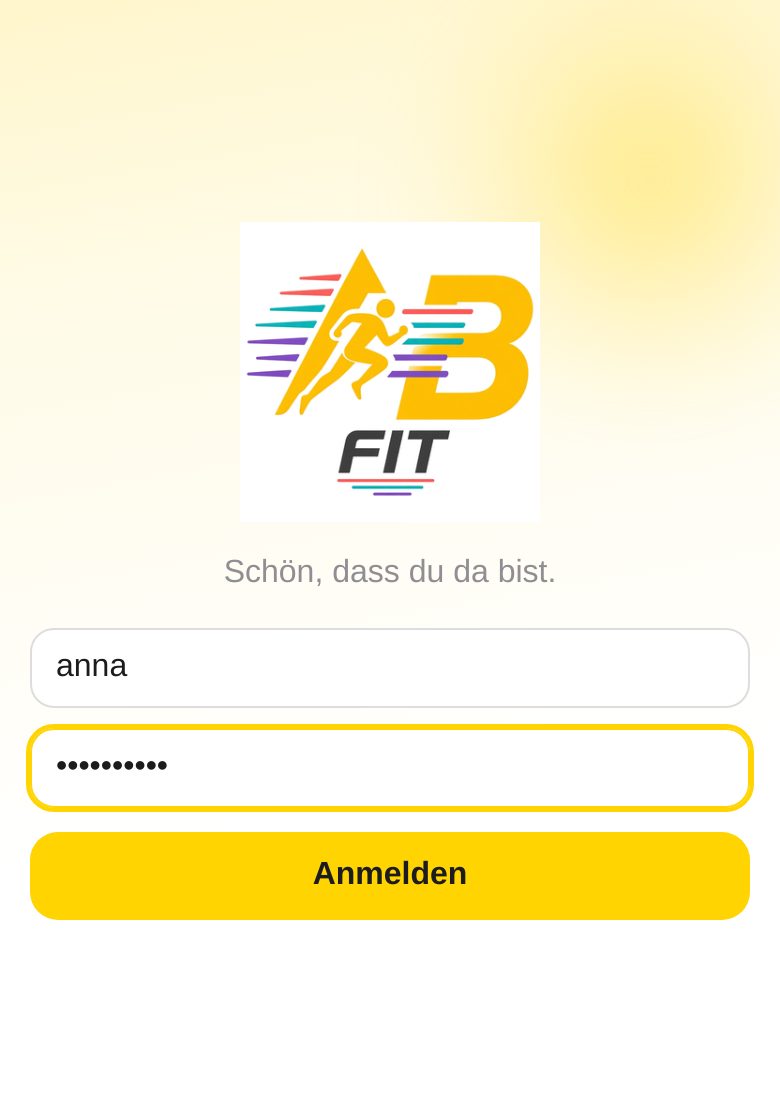
- Enter your Username (lowercase, e.g. “anna”).
- Enter your Password and tap Sign in.
- You stay signed in – even after closing the app. You can sign out under More → Sign out.
3. The Cockpit, the Day overview and swiping
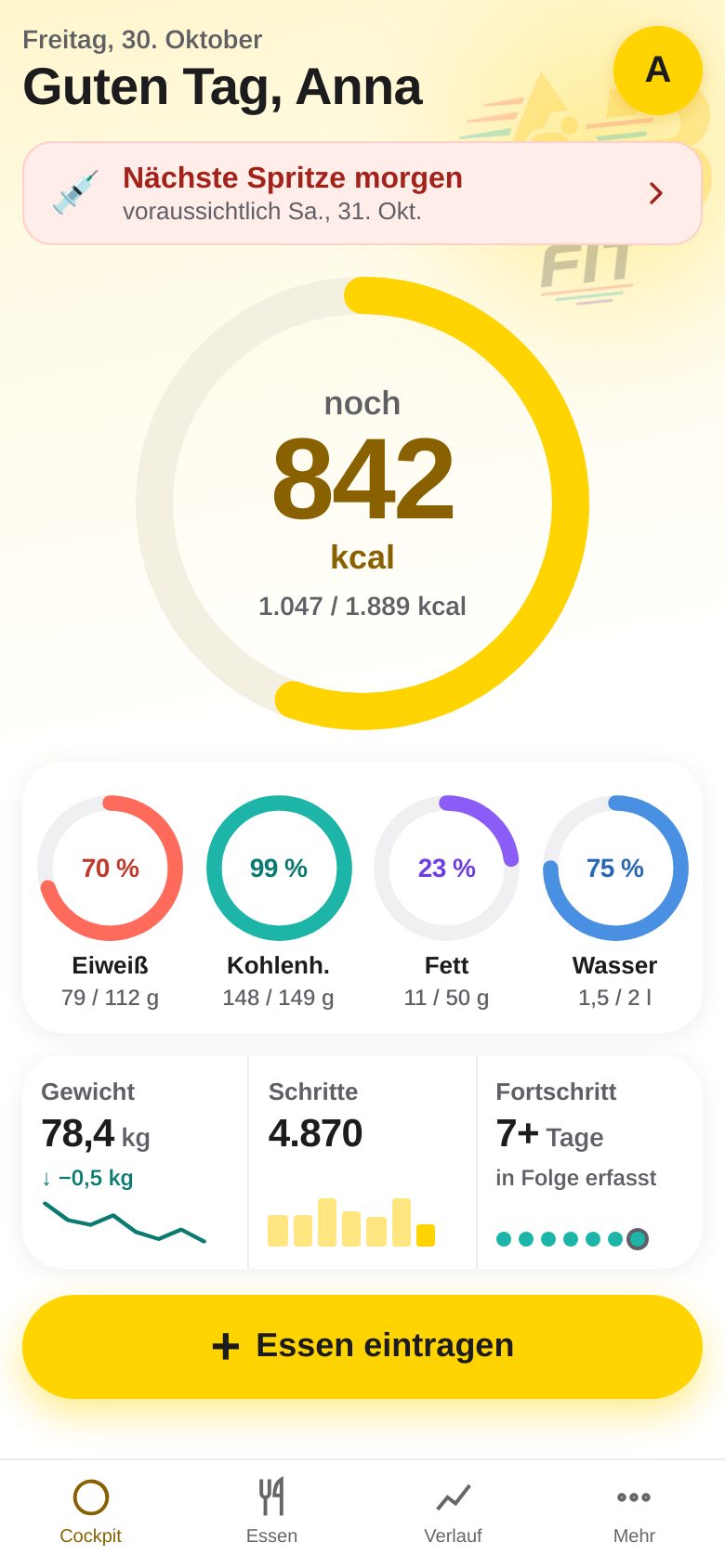
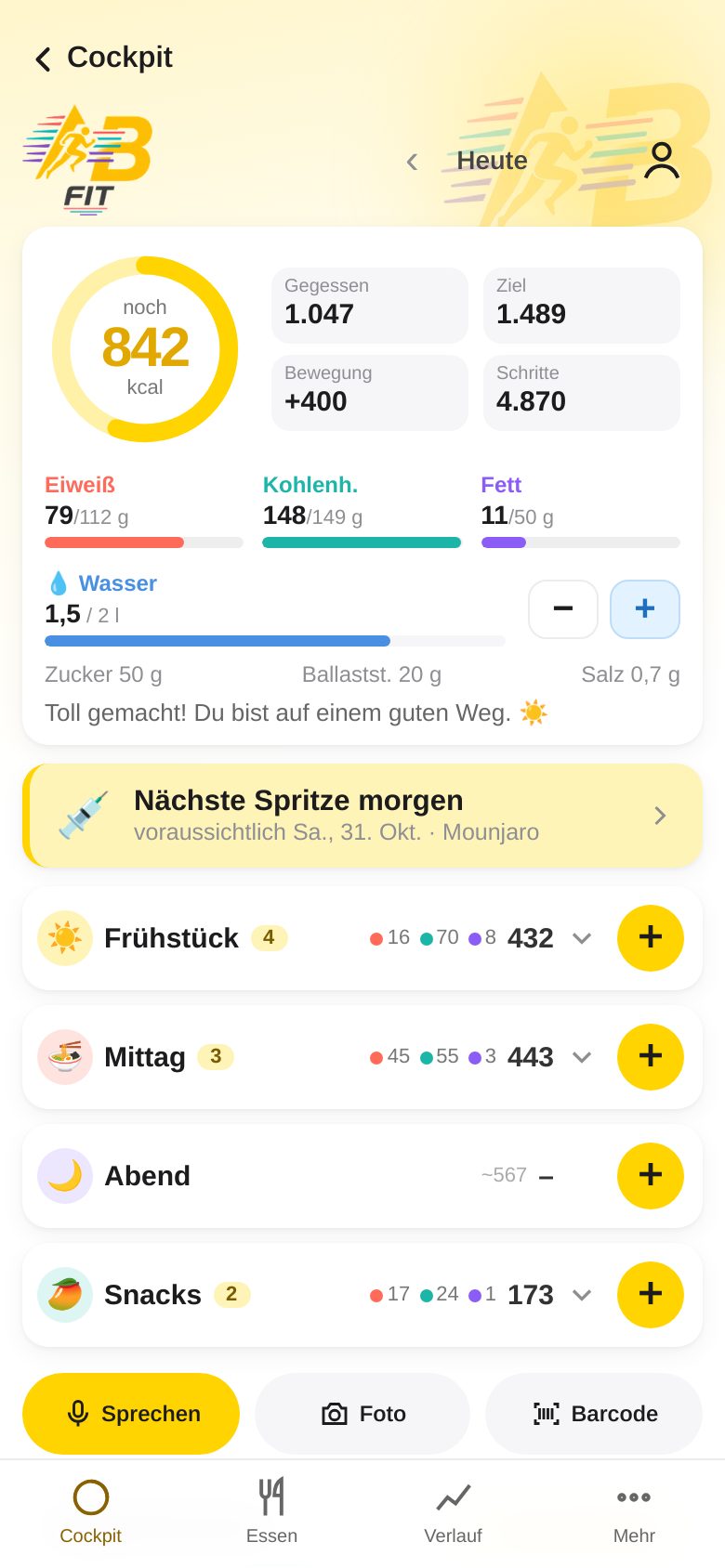
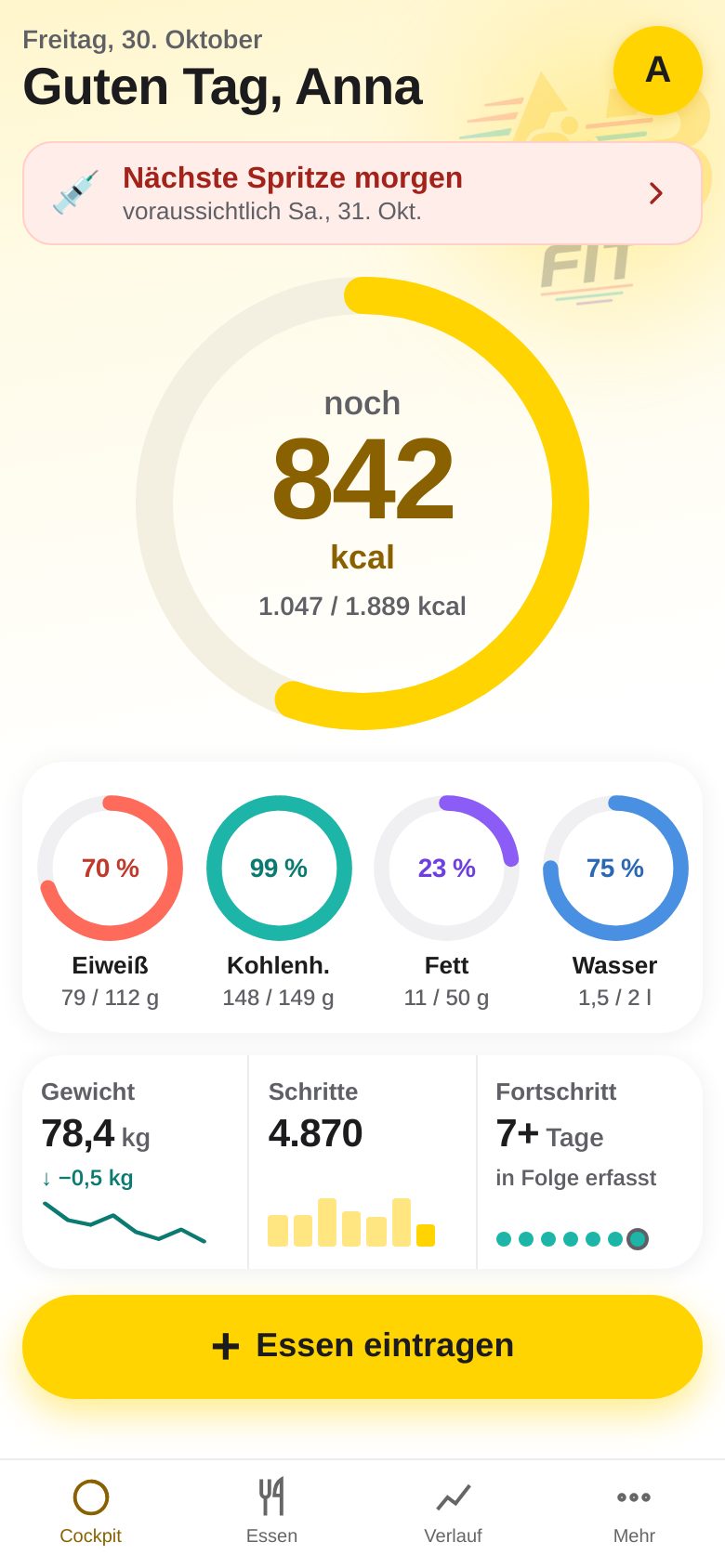
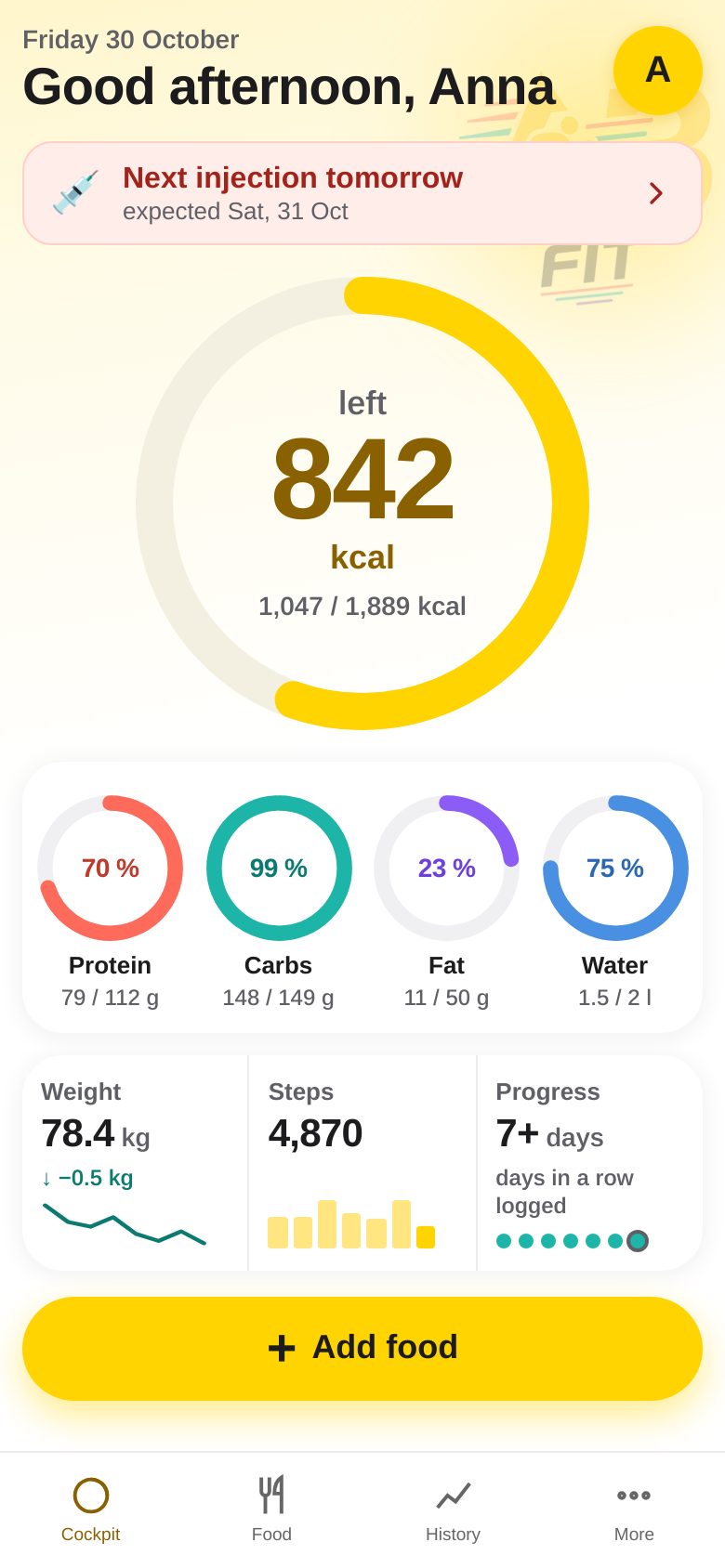
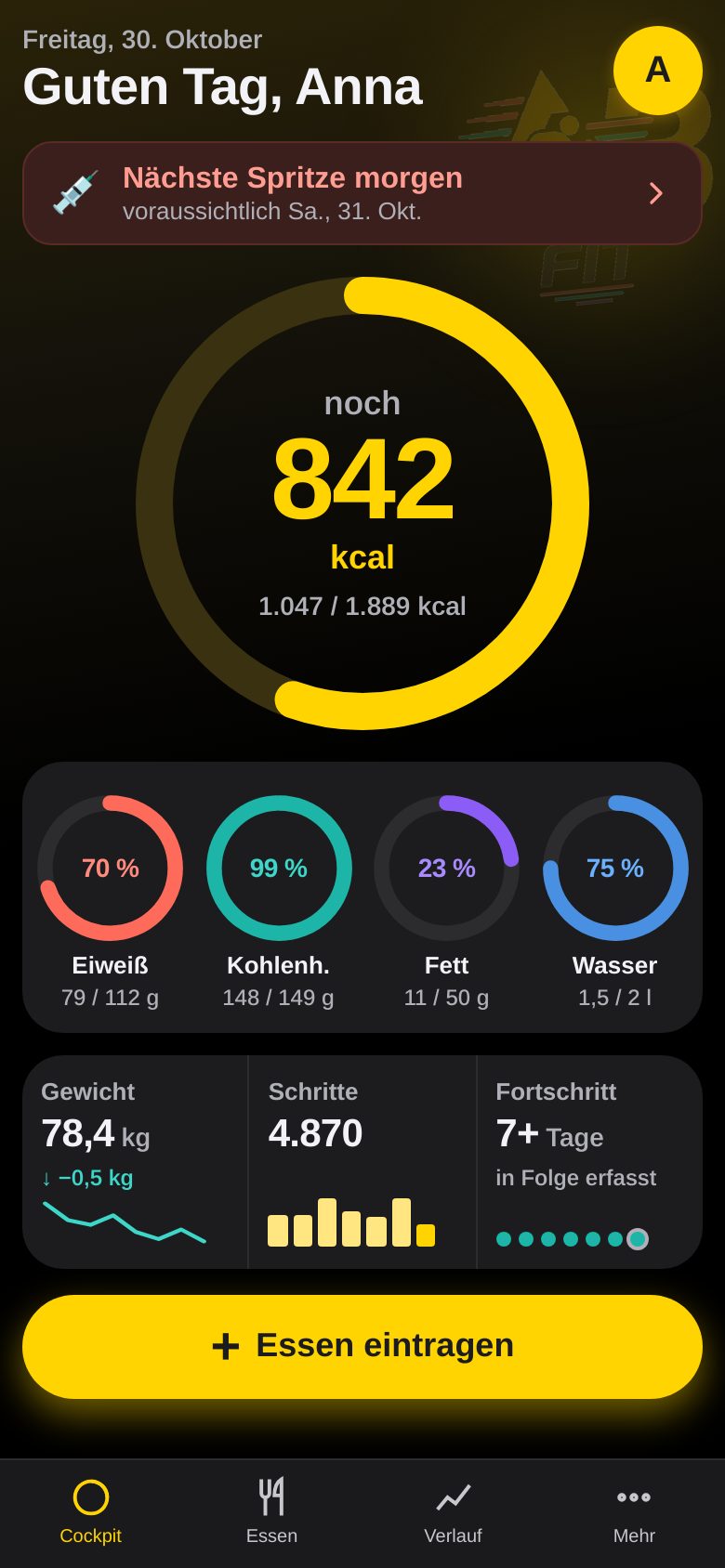
After signing in you see the Cockpit – your home page for today. At the bottom there are four tabs: Cockpit, Food, History, More.
- Header: date, a greeting with your name and, at the top right, the round yellow profile icon – it opens Settings.
- Large calorie ring: shows how many calories are still free today (“1,851 kcal left”), with “eaten / budget” below. Tap the ring to open the Day overview.
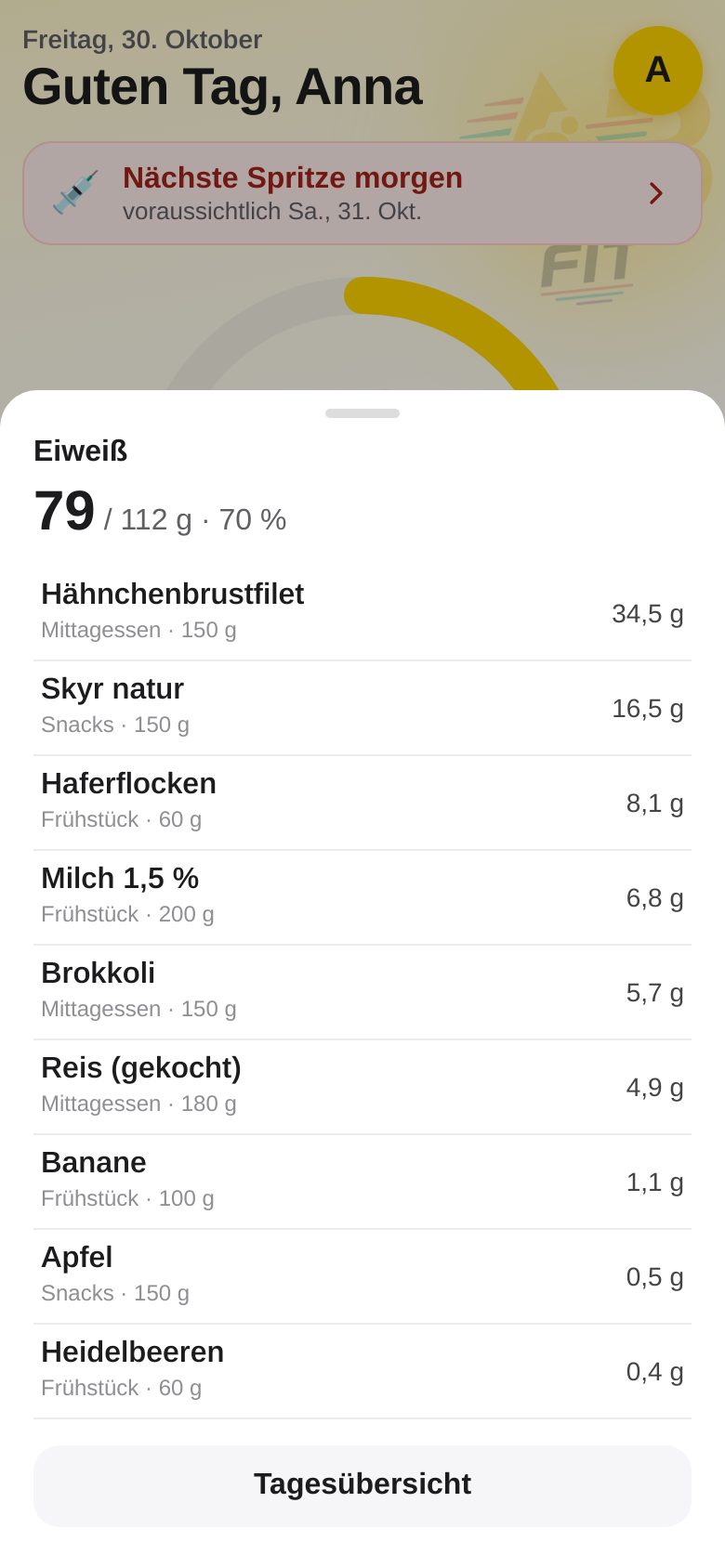
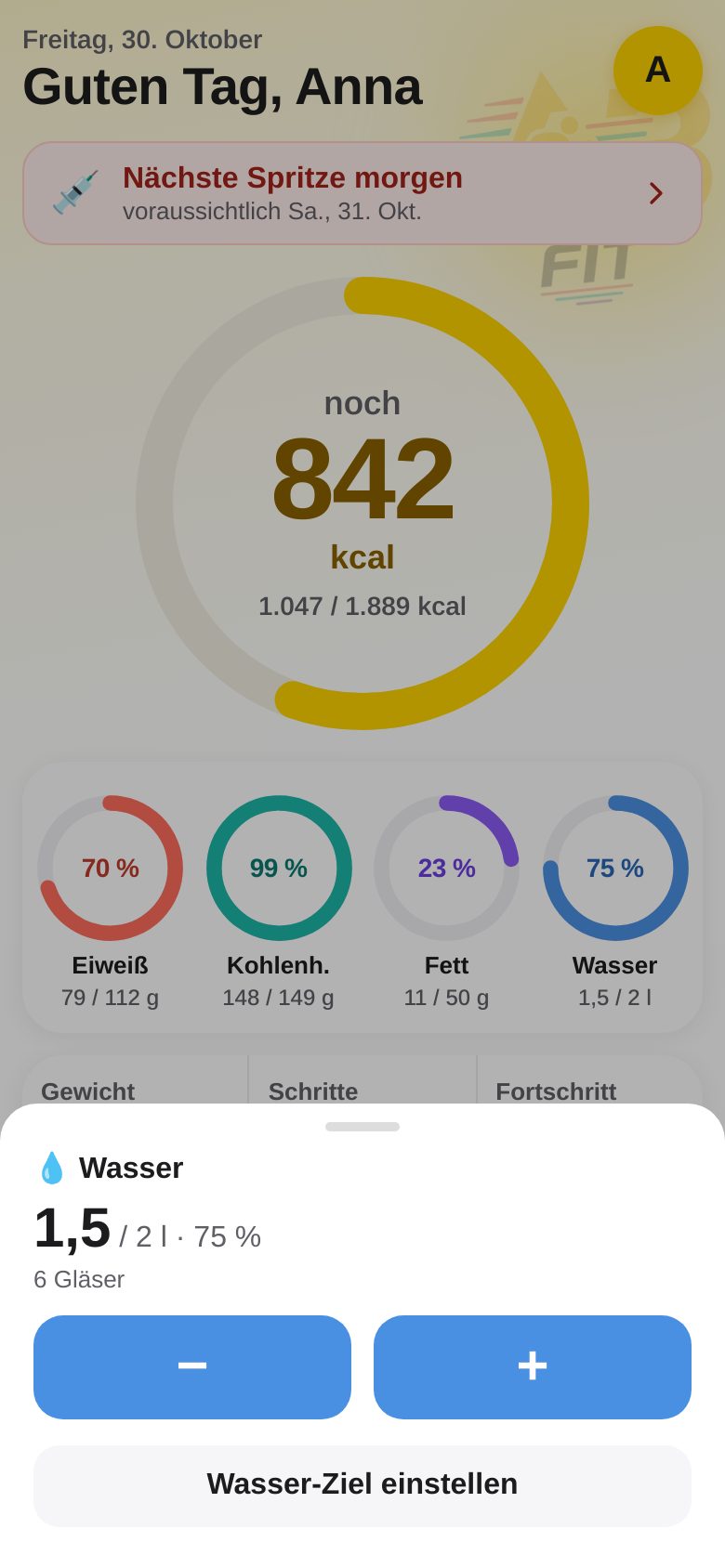
- Four small rings: protein, carbs, fat and water – each with value, goal and percentage. Tapping shows where the value comes from.
- Card with three fields: Weight (tap to open History), Steps (opens Activity) and Progress (days in a row with entries; opens the week overview).
- Medication hint: appears only when a dose is due (“Next injection tomorrow”). Tapping it opens Medications.
- Add food: the large yellow button leads straight to food entry.
Tap the rings
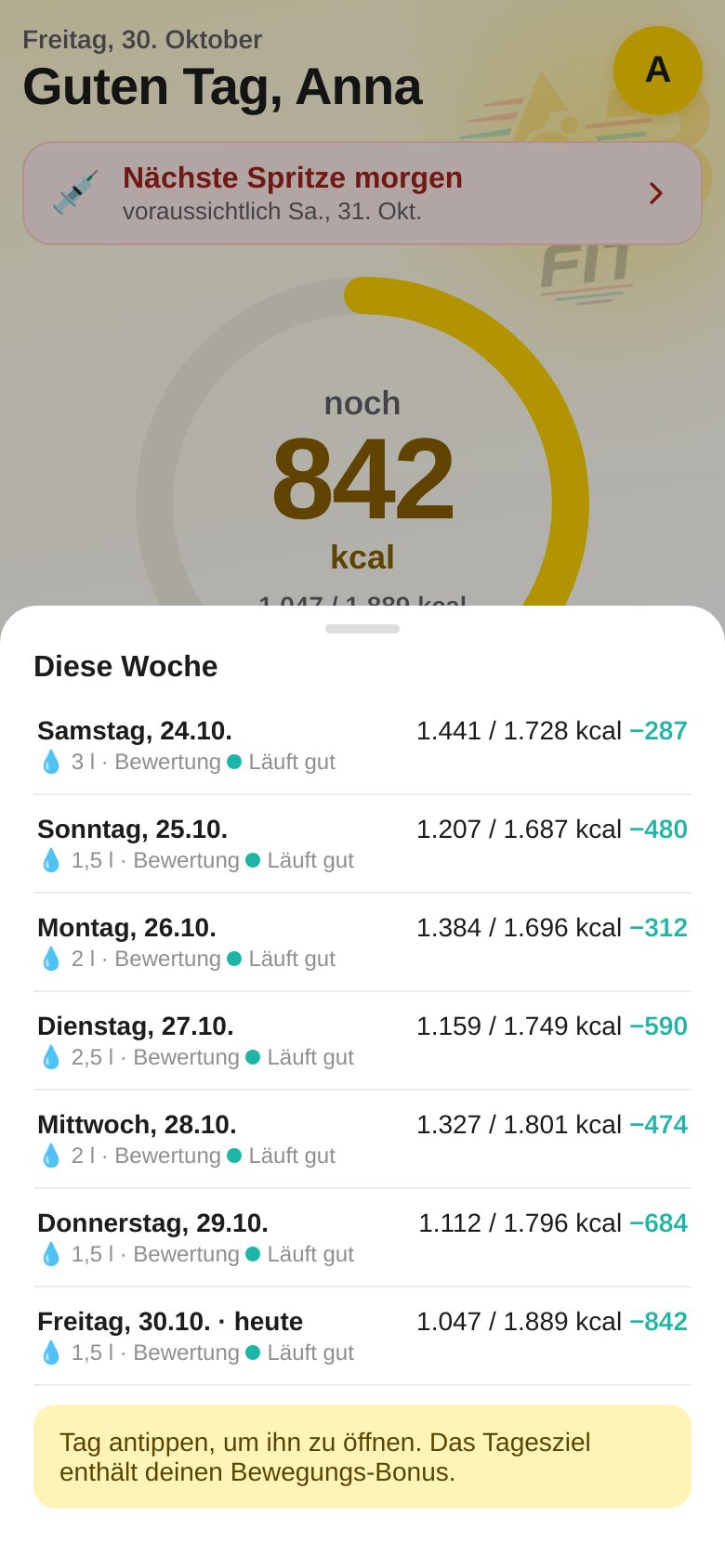
The Day overview
Tap the calorie ring in the Cockpit (or open More → Day overview). Here you see the day in detail – and you can switch to other days.
- Ring and tiles: left, Eaten, Goal, Activity (bonus from sport/steps), Steps.
- Macros: protein, carbs and fat with bars; below them sugar, fiber, salt.
- Meals: Breakfast, Lunch, Dinner, Snacks. Yellow + = add something, tapping the row = expand it.
- Quick buttons: Speak, Photo, Barcode.
- With ‹ Today › at the top you switch to other days. With ← Back you return to the Cockpit.
4. Logging food
Tap the yellow button “Add food” in the Cockpit – or the yellow + next to a meal in the Day overview. You land in the Food tab; with the second option the meal is already selected.
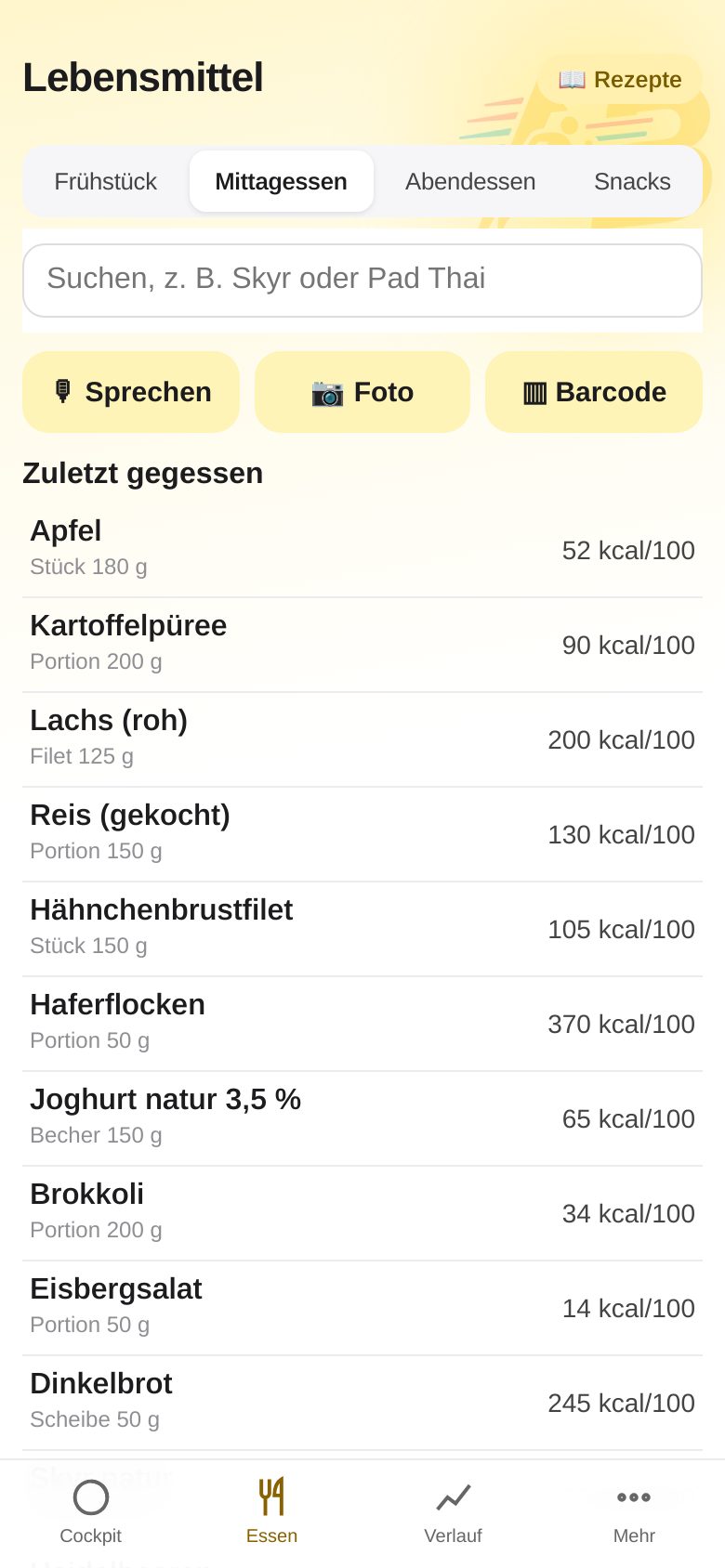
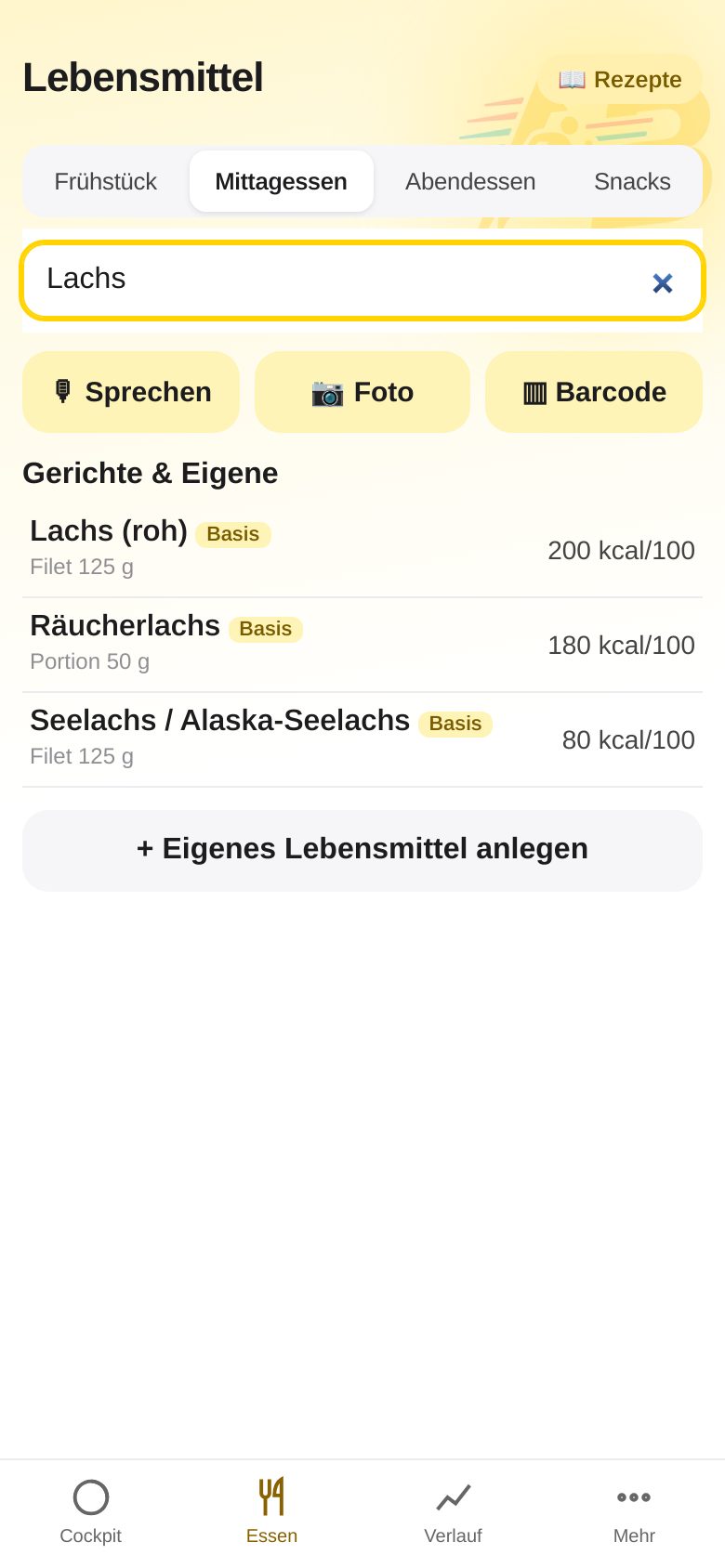
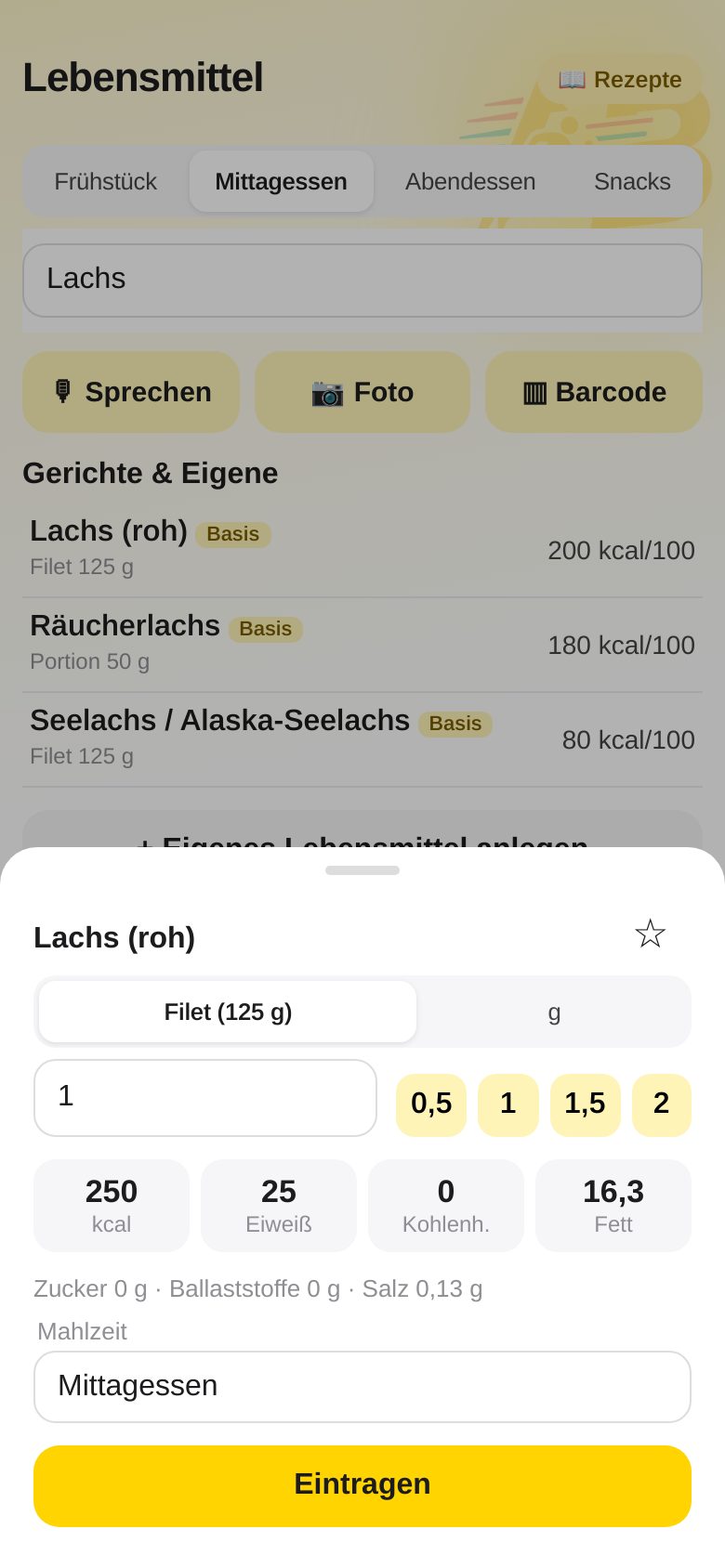
- At the top, choose the Meal (Breakfast, Lunch, Dinner, Snacks).
- Tap a food under “Recently eaten” – or search in the search field at the top. Entries tagged “Basic” come from the checked ABfit database; below them are products from Open Food Facts.
- Set the amount: with − / +, by typing, or with the yellow quick amounts (e.g. “Fillet (125 g)”).
- Tap Add. The button briefly shows “Saving …” – one tap is enough.
Create a custom food
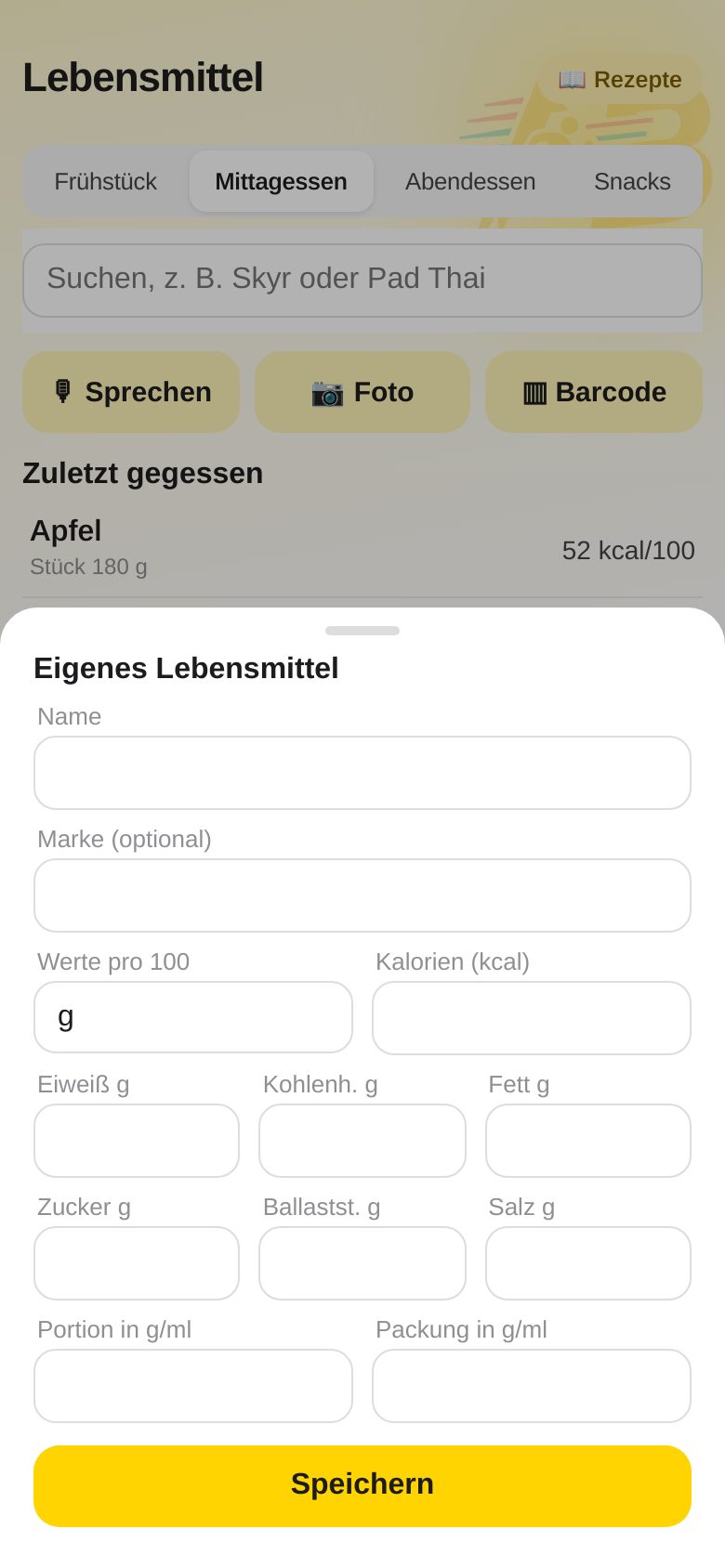
If you cannot find a product, create it yourself: in the Food tab via “+ Create custom food”.
- Enter a name and, if you like, a brand.
- Type in the nutrition values per 100 g from the package (at least calories) – or conveniently by photographing the nutrition label (section 6).
- Optionally a serving (e.g. “piece, 120 g”) and a barcode.
- Save – it appears in the search with the tag “custom”.
5. Speak, photo and barcode
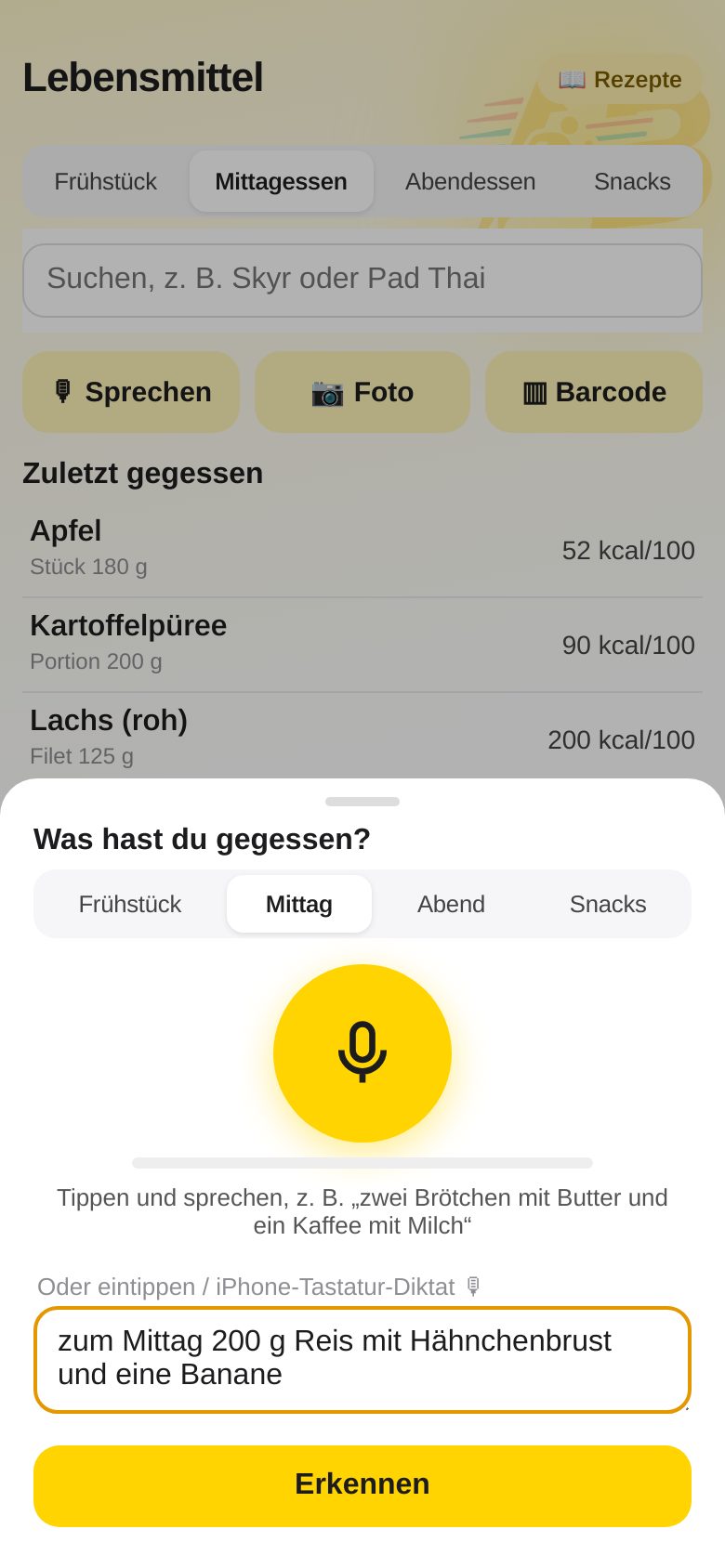
🎙️ Speak
- In the Food tab tap Speak (there is also a button in the Day overview).
- Choose the meal and tap the yellow microphone.
- Simply say what you ate: “A glass of milk, two slices of whole-grain bread with cream cheese”.
- Tap again to finish. ABfit shows a list for you to check – adjust the amounts, then add.
Alternatively you can type the text.
📷 Photo of the meal
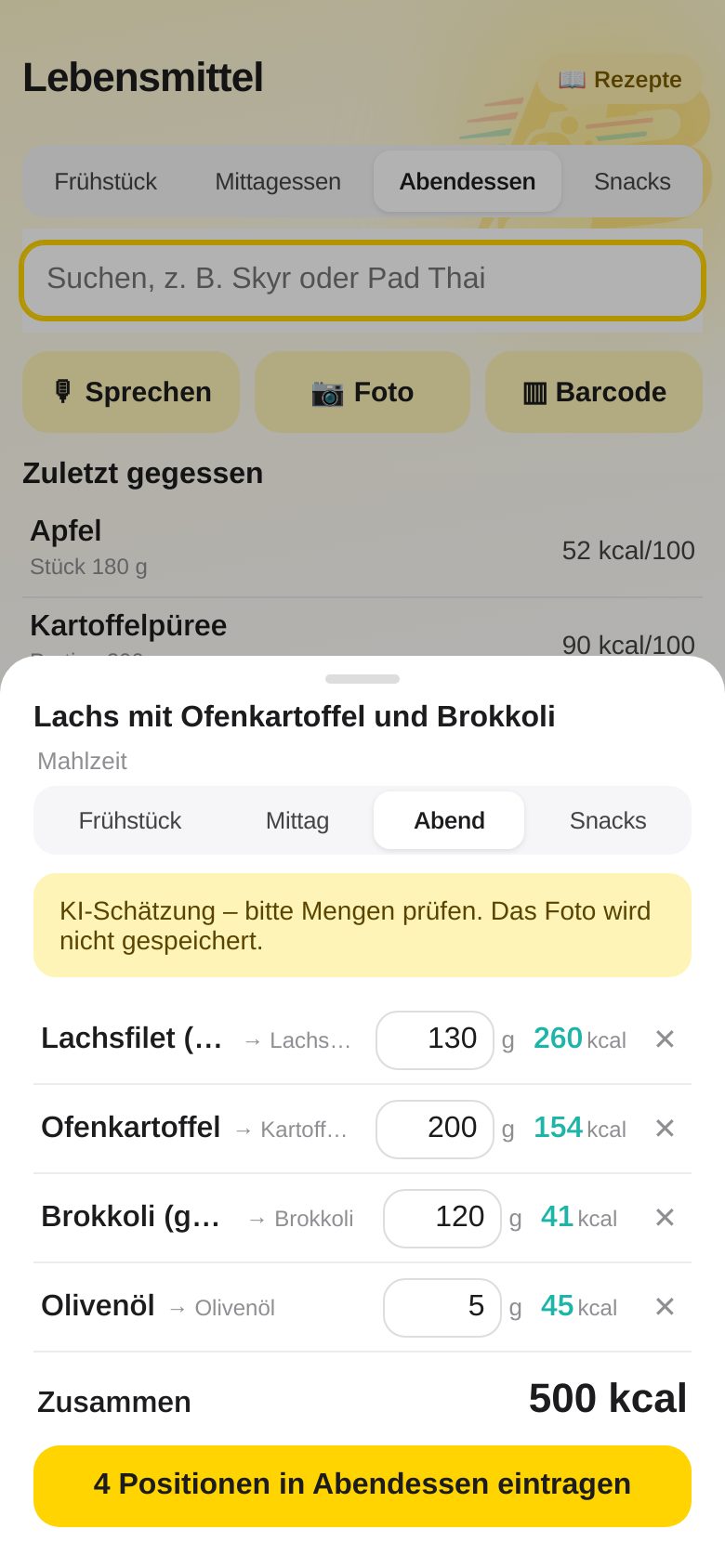
- Tap Photo and photograph your plate (ideally from diagonally above, with everything visible).
- The AI recognizes the components and estimates the amounts – even filled dishes are broken down into their parts.
- Check the list: tap grams to change them, remove with ✕. A red-marked row is not matched yet – tap it and choose the right food.
- At the bottom tap “Add … items” – done.
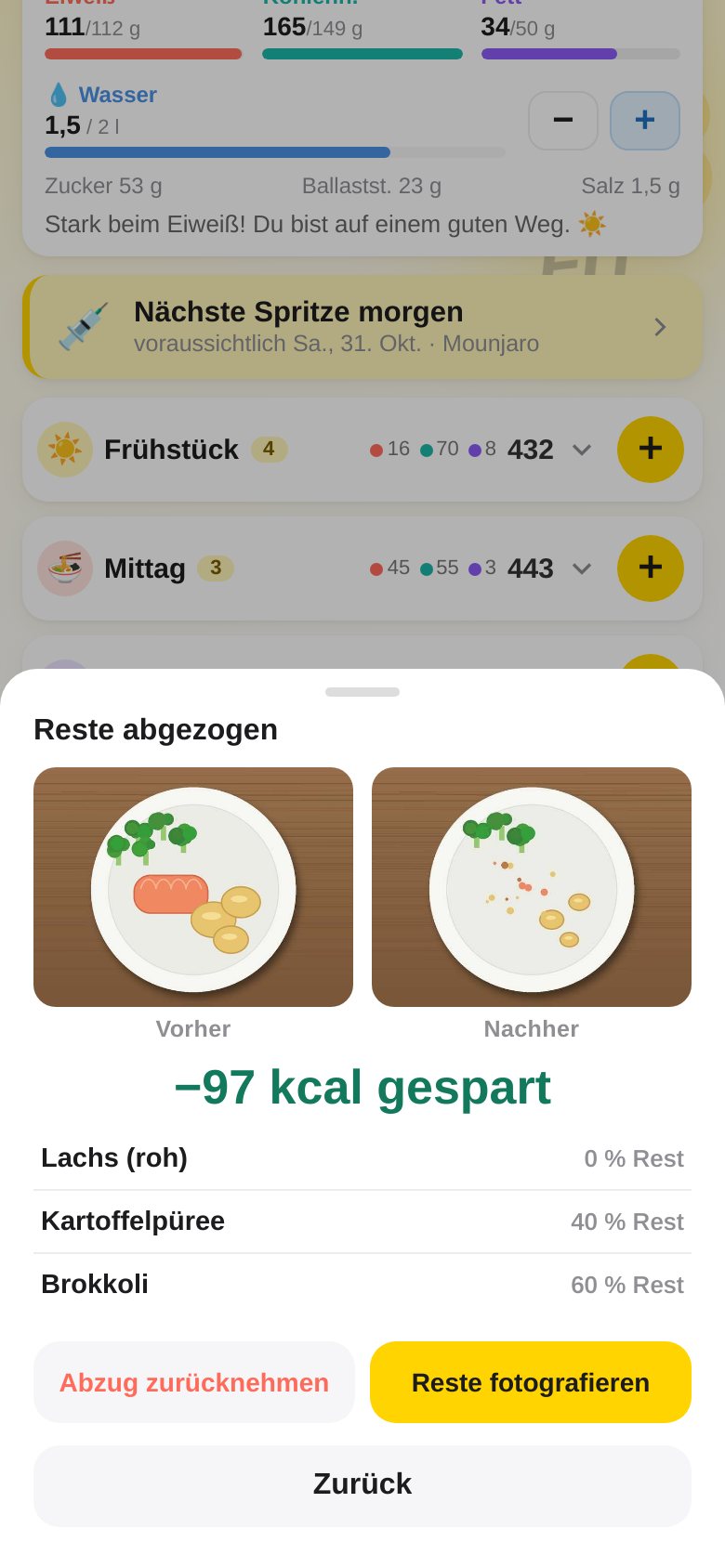
🍽️ Photograph leftovers: did not finish?
Did you log a meal by photo and not eat everything? Then you do not have to recalculate amounts by hand: photograph the plate after eating, the AI estimates what is left, and ABfit deducts it for you.
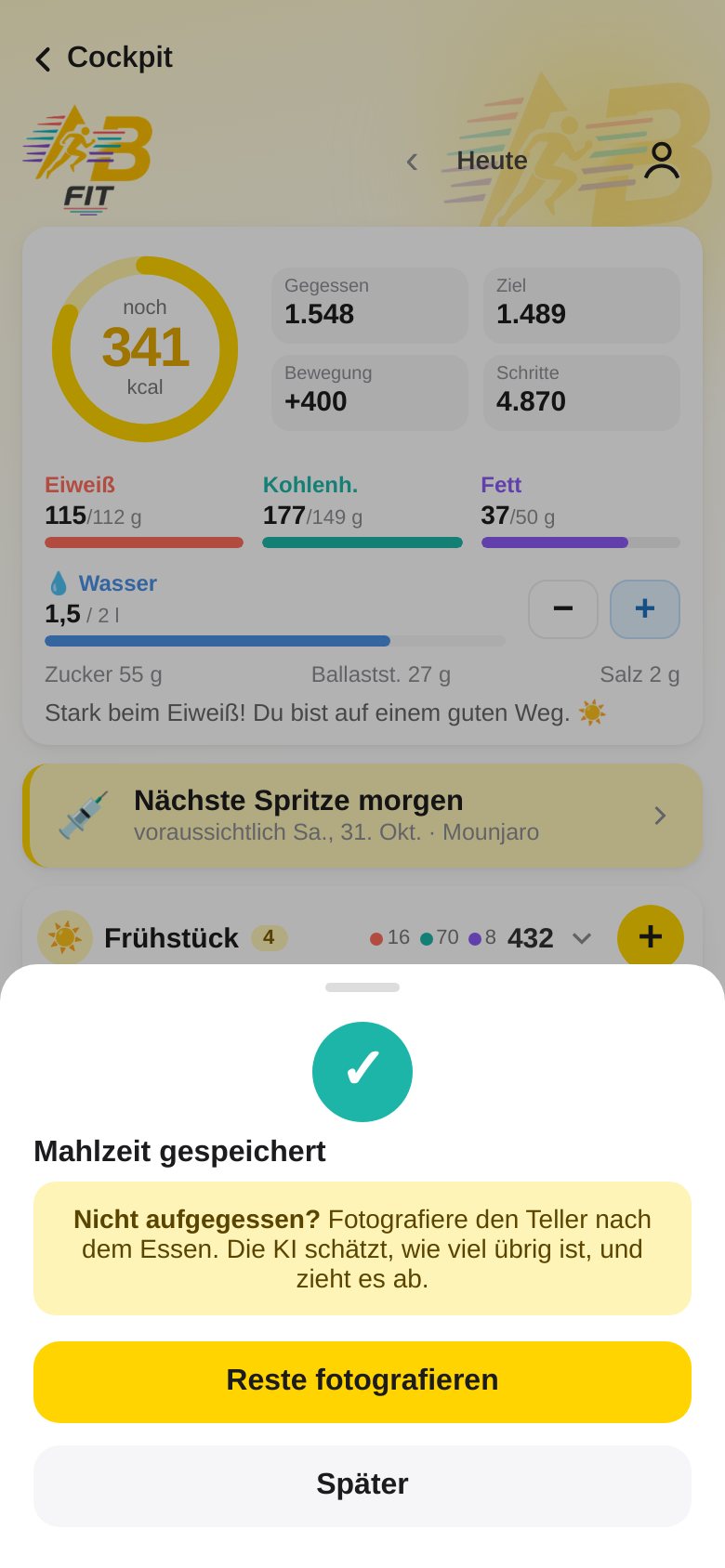
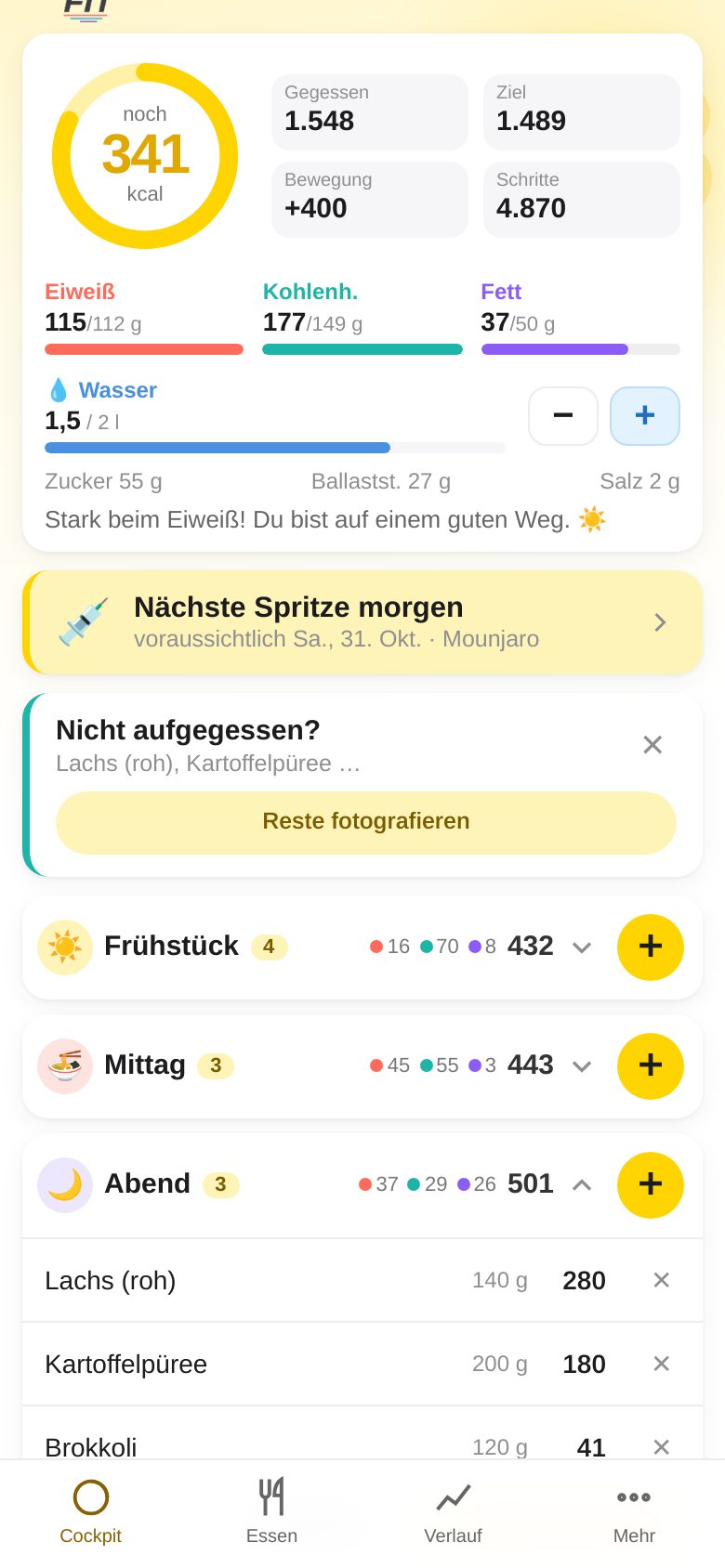
- Right after saving, ABfit asks “Did not finish?” – tap Photograph leftovers. With “Later” you close the window; the question stays for 4 hours as a card at the top of the Day overview (can be hidden with ✕).
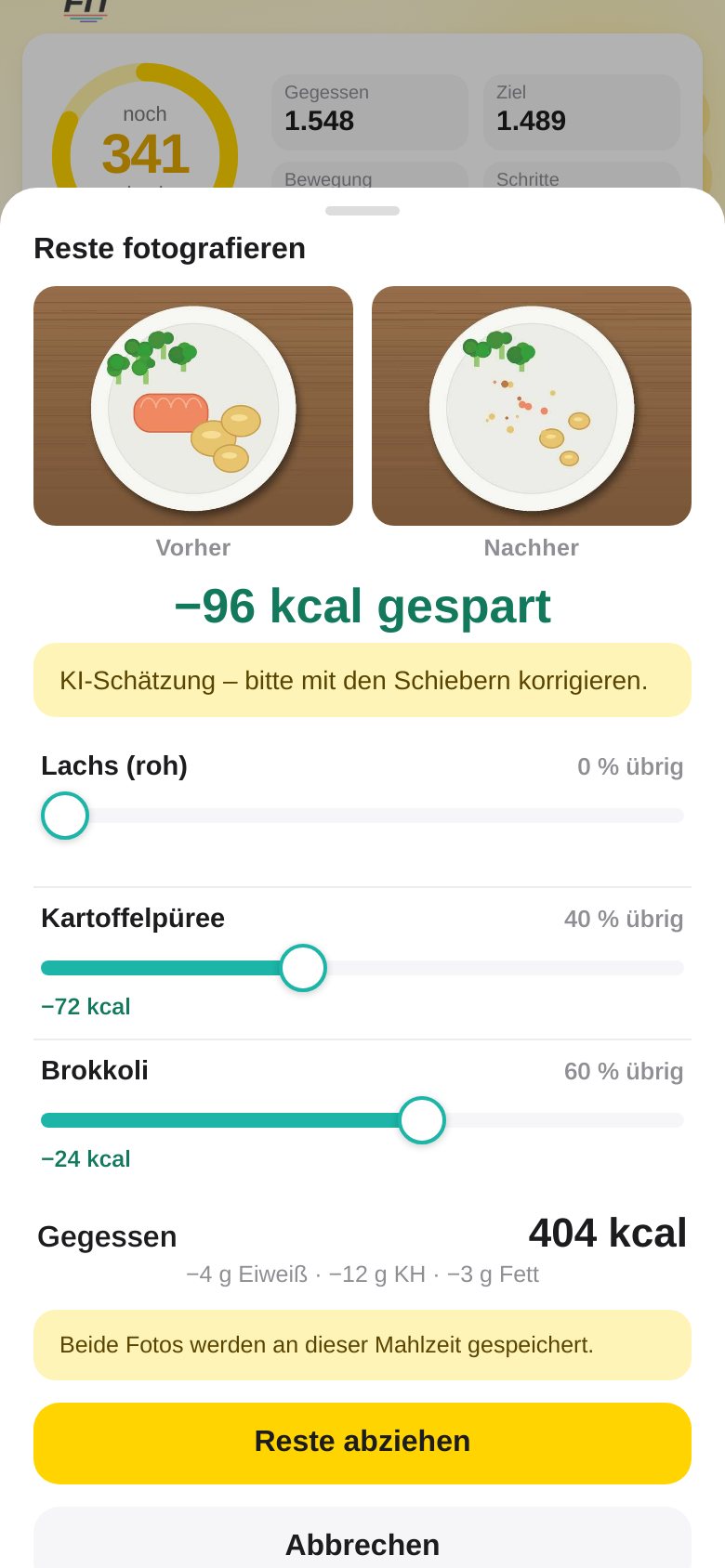
- Tap Photo of plate and photograph the plate after eating. The AI compares the picture with the Before photo and estimates, for each component, how much is left.
- Check the sliders (0 to 100 %, in steps of 5 %): they show what is left of each component. At the top, “−… kcal saved” updates live. Set them the way it really was.
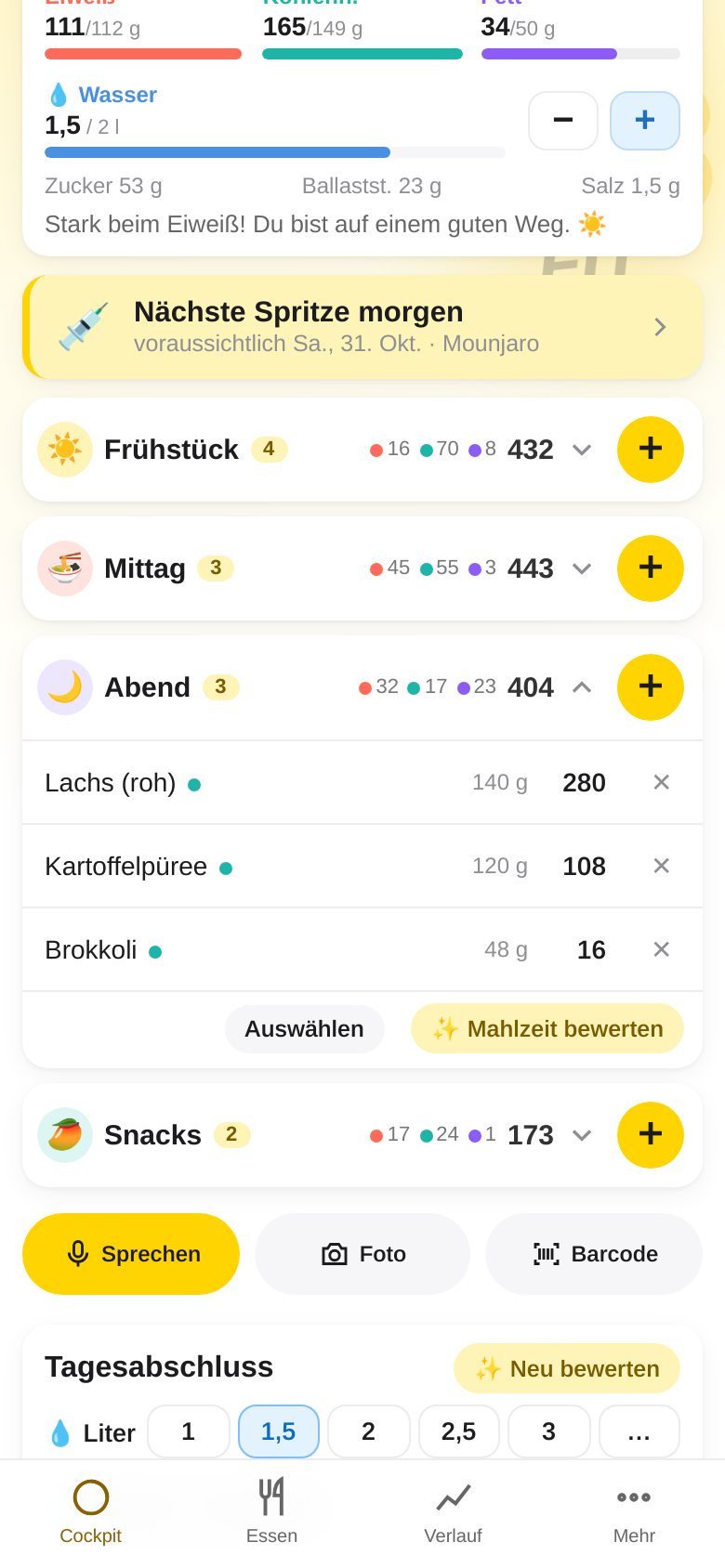
- Tap Deduct leftovers. Amount, calories and nutrients of the entries go down accordingly; a small dot on the entry marks the deduction. “Undo” in the message restores everything immediately.
▦ Barcode
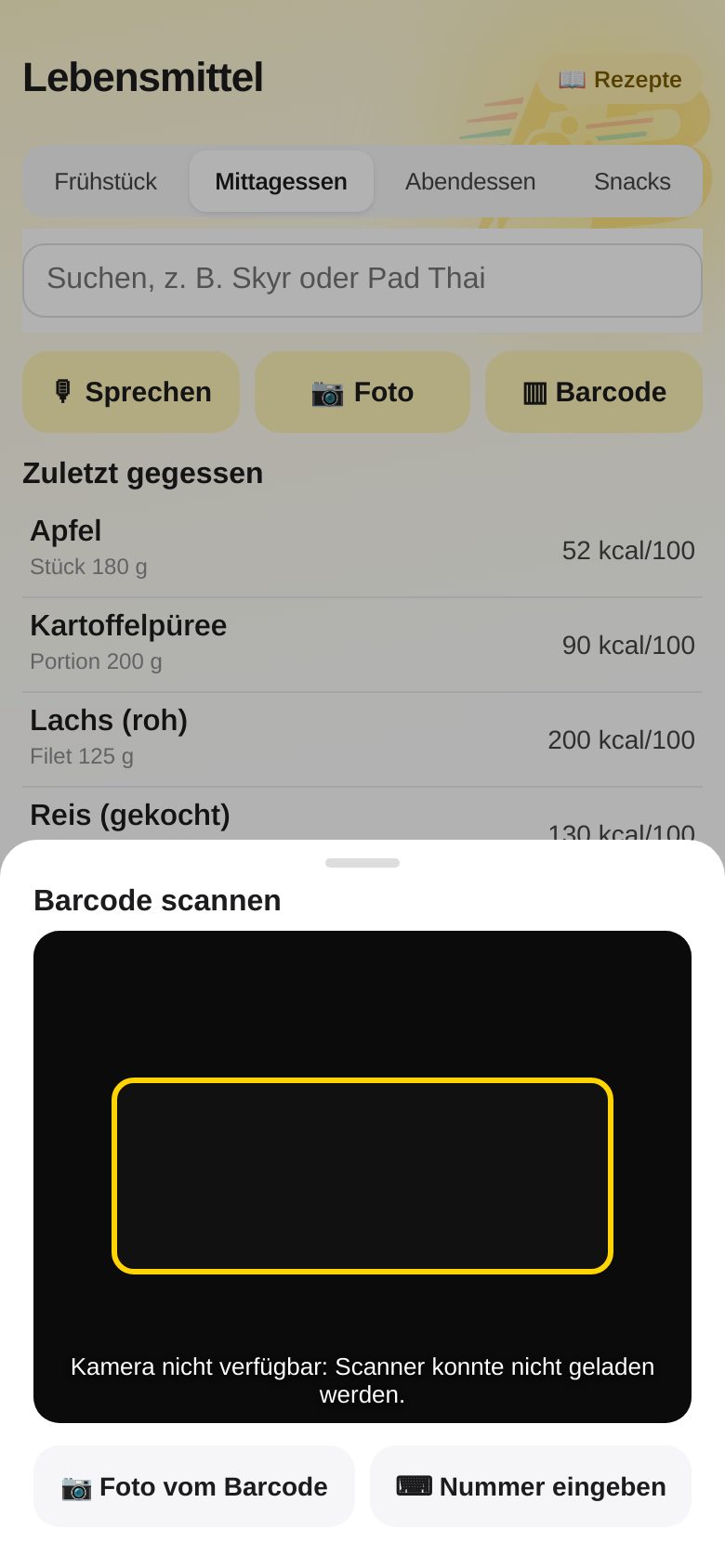
- Tap Barcode and hold the camera on the barcode of the package (allow the camera the first time).
- The product opens with its nutrition values – choose the amount and add it.
- Scanning does not work? Take a “Photo of barcode” or enter the number.
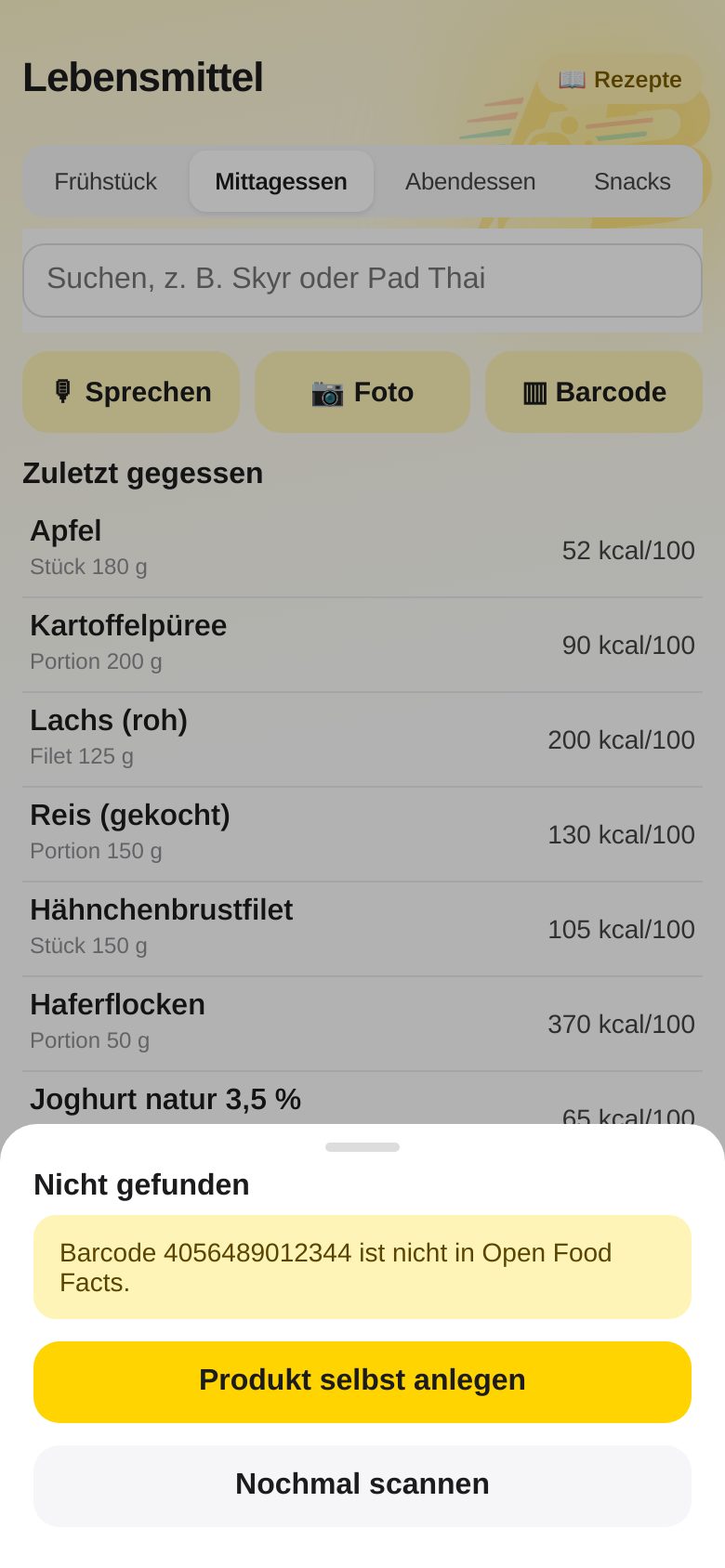
- If the product is unknown, you create it – fastest by photographing the nutrition label (next section).
6. Photograph the nutrition label
If the barcode does not work or the product is in no database, you do not have to type in the values: simply photograph the nutrition label on the package. An image AI (vision) reads the numbers and fills in the new food for you.
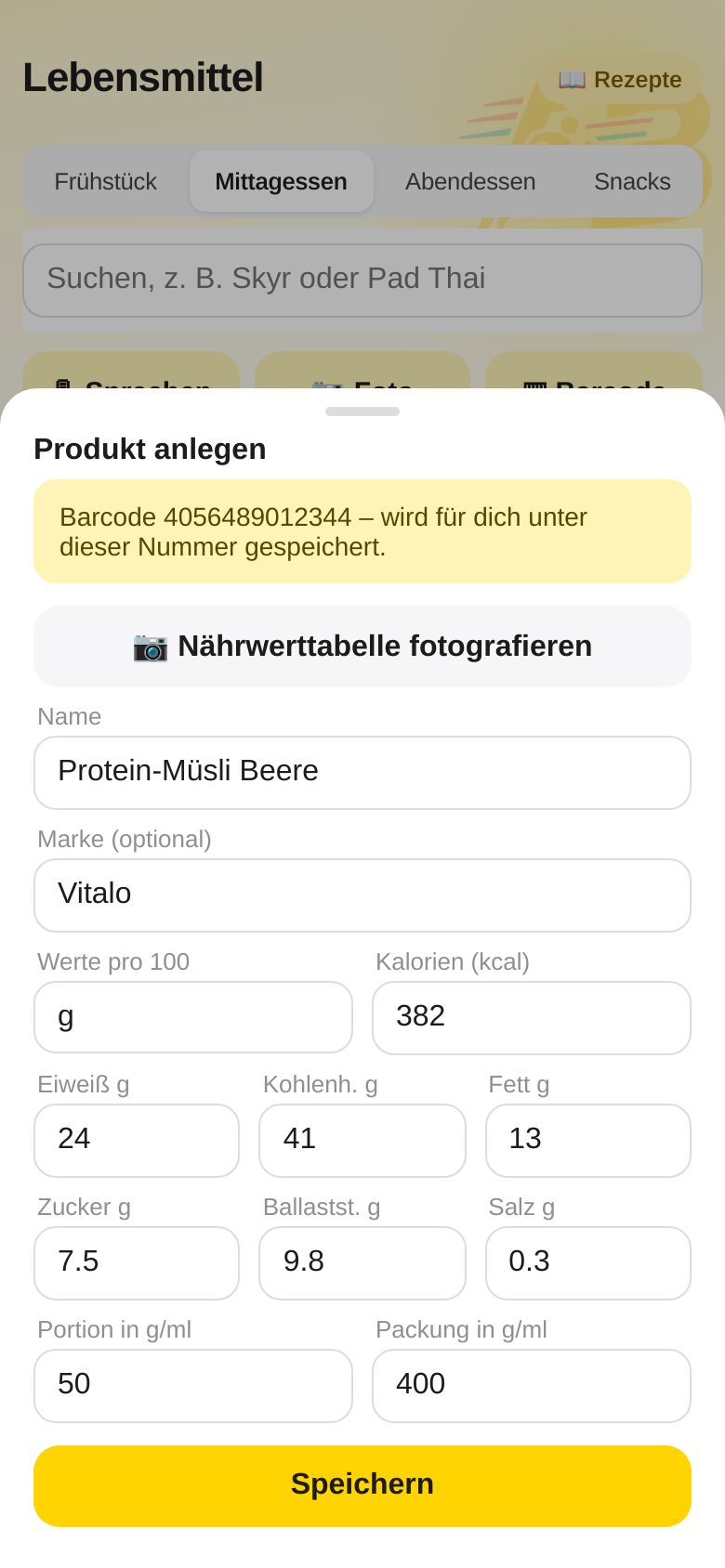
- Scan the barcode or type it in. If it is unknown, “Create product” opens – or choose “+ Create custom food” in the Food tab.
- Tap 📷 Photograph nutrition label and photograph the label on the package. Hold the phone straight, use good light, and get the whole table in the picture.
- Wait a moment (“Reading the nutrition label …”): name, brand and the nutrition values (calories, protein, carbs, sugar, fat, fiber, salt) are filled in per 100 g; also serving and package size if they are given there.
- Check the values against the package, correct anything that is wrong, and tap Save. The food is now in your search (tag “custom”) and linked to the barcode.
7. Edit entries and delete several at once
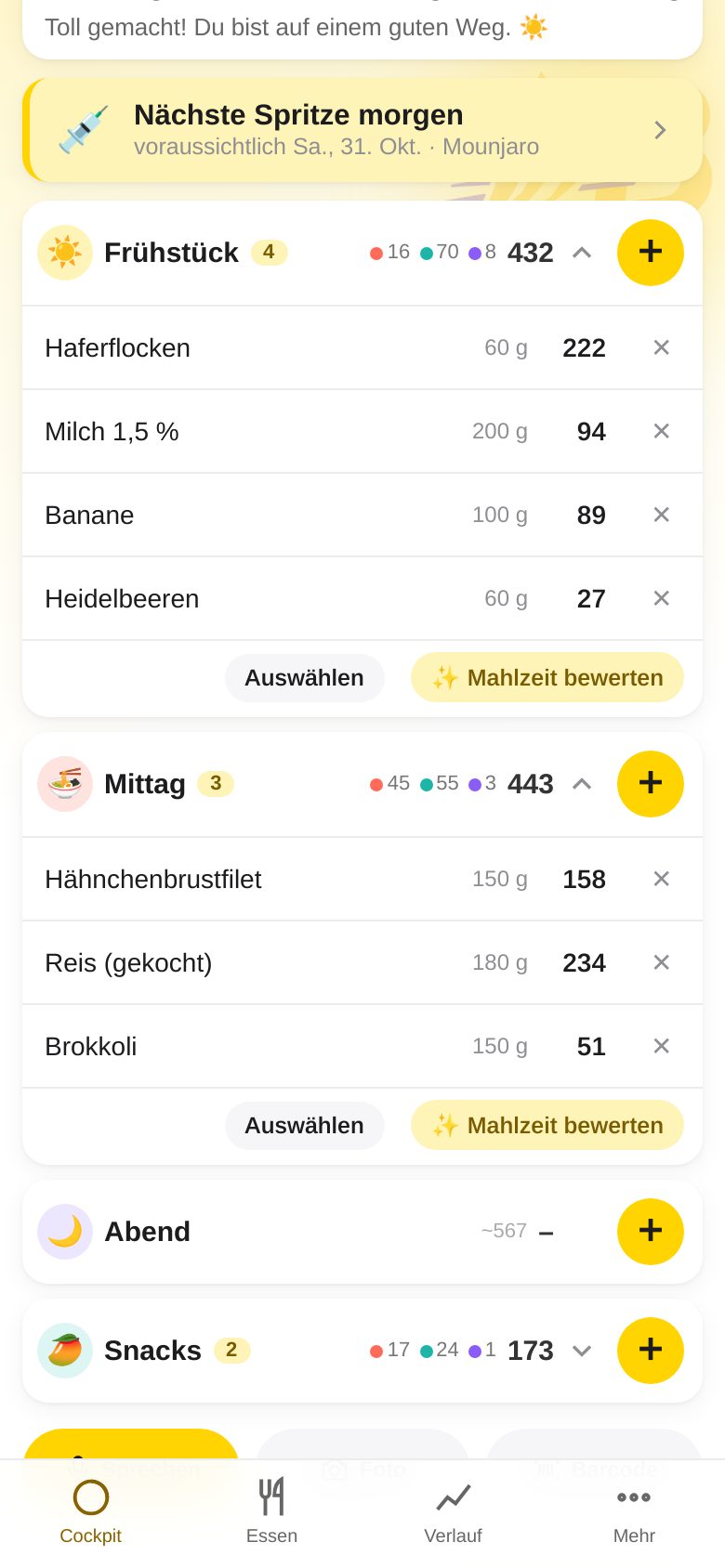
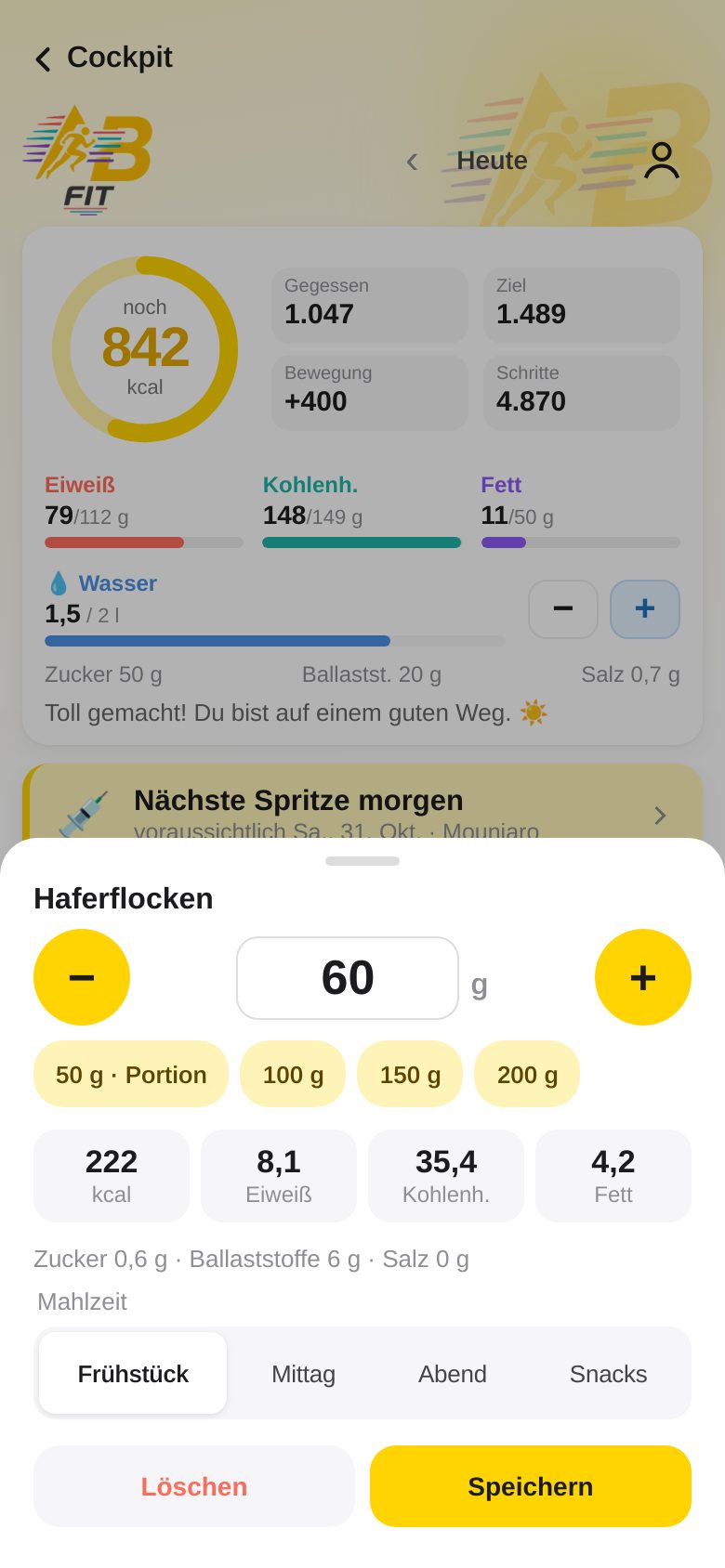
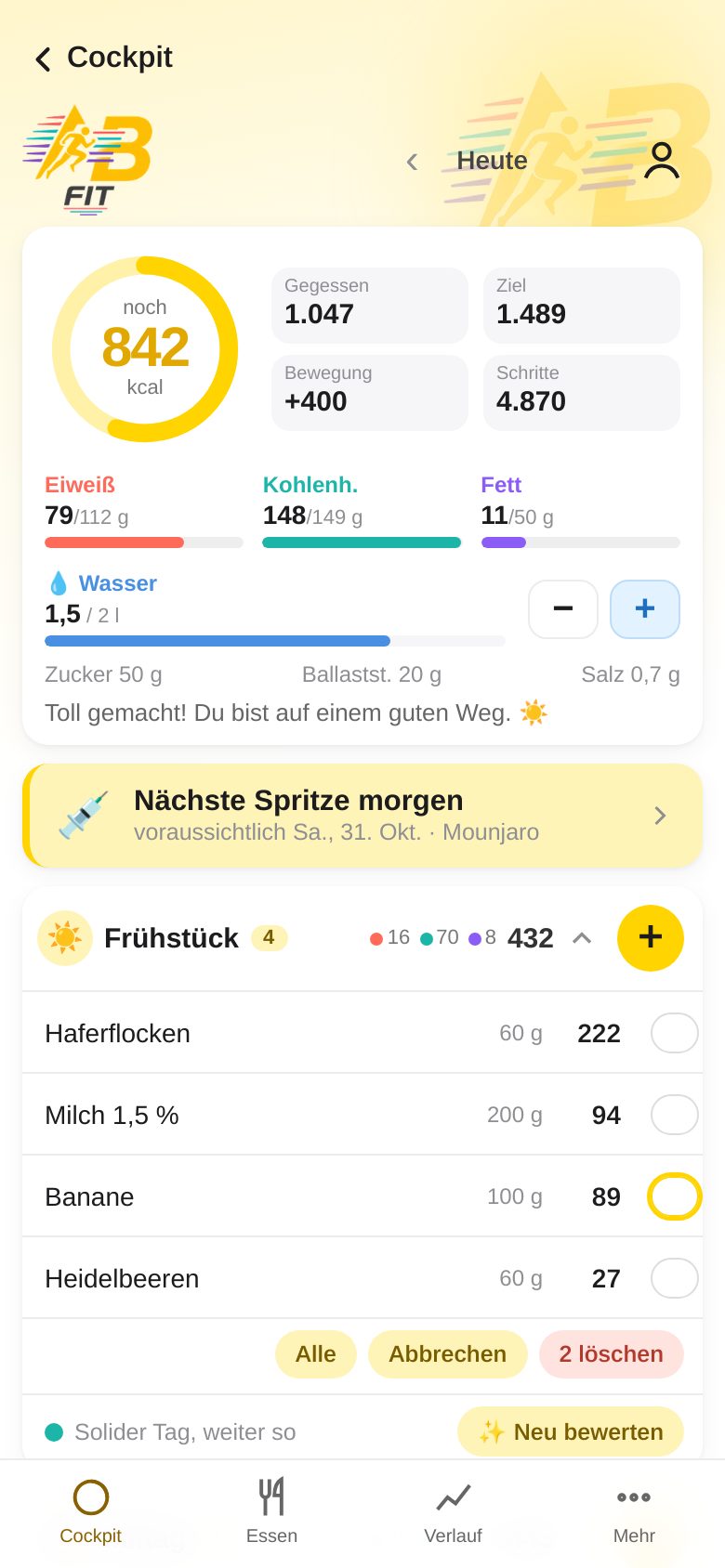
- Open the Day overview (tap the calorie ring in the Cockpit) and tap a meal to expand it.
- Change: tap an entry → change the amount or meal → Save. Or Delete.
- Quick delete: the small ✕ to the right of an entry.
- Delete several: at the bottom of the meal tap Select → tick entries (or All) → “Delete 2” → confirm.
- Deleted by accident? Tap Undo in the message at the bottom within 6 seconds.
8. Day wrap-up, water and AI rating
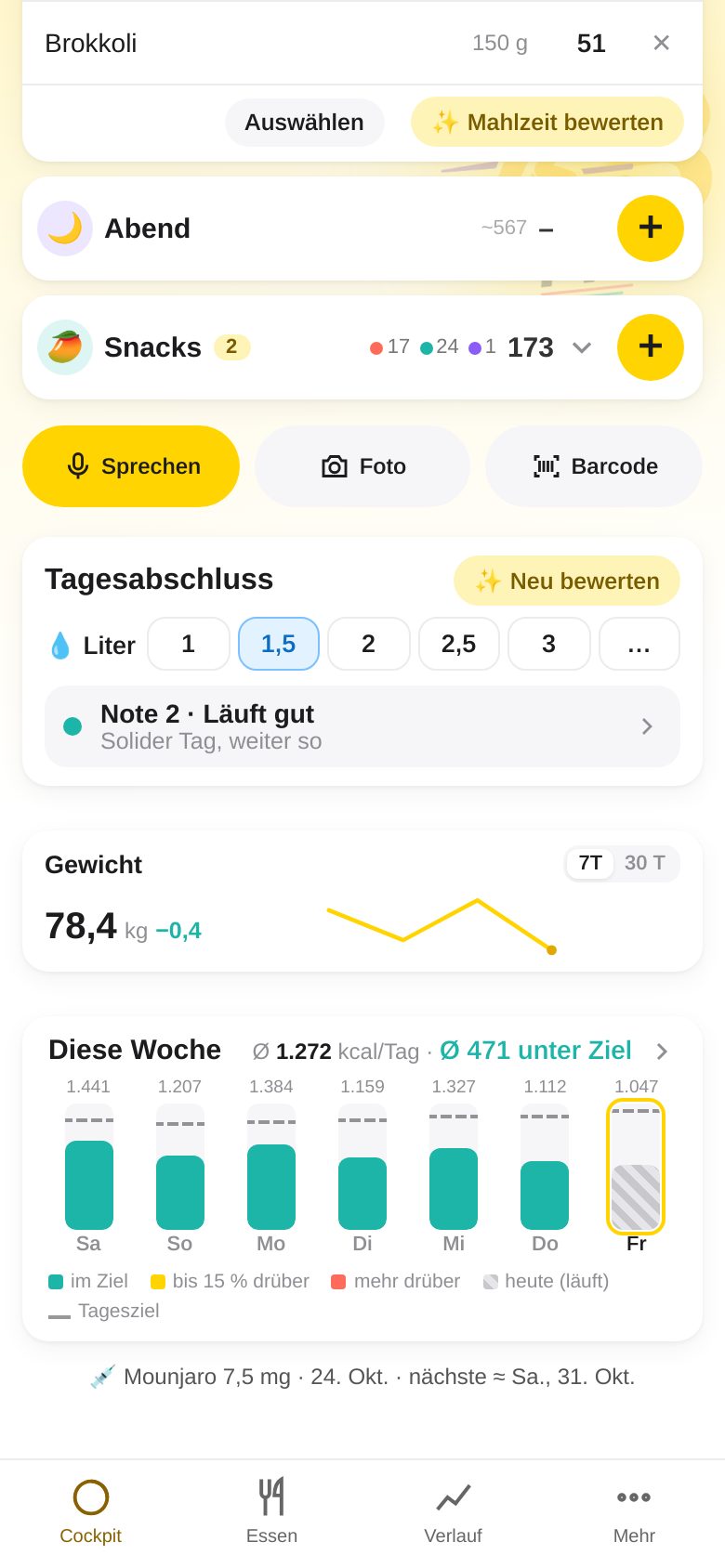
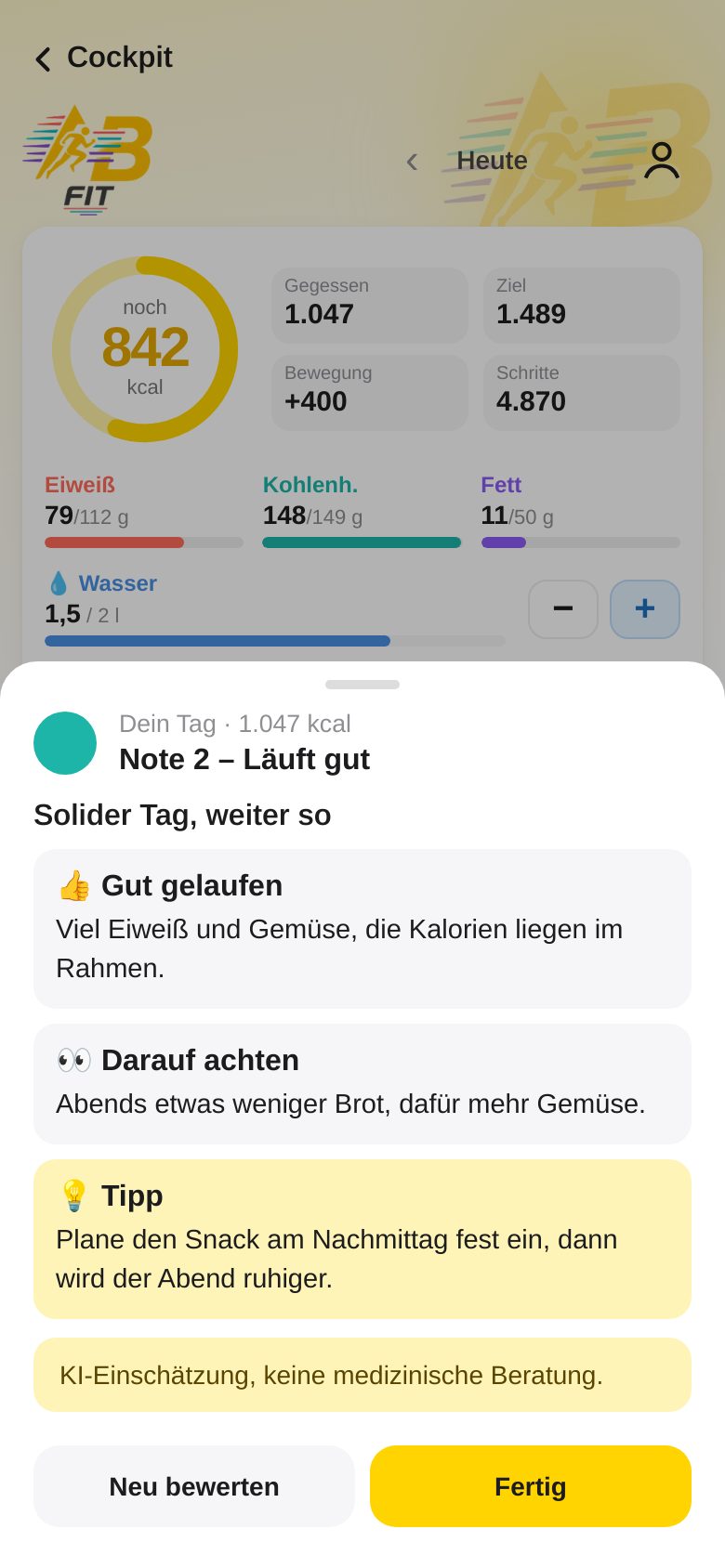
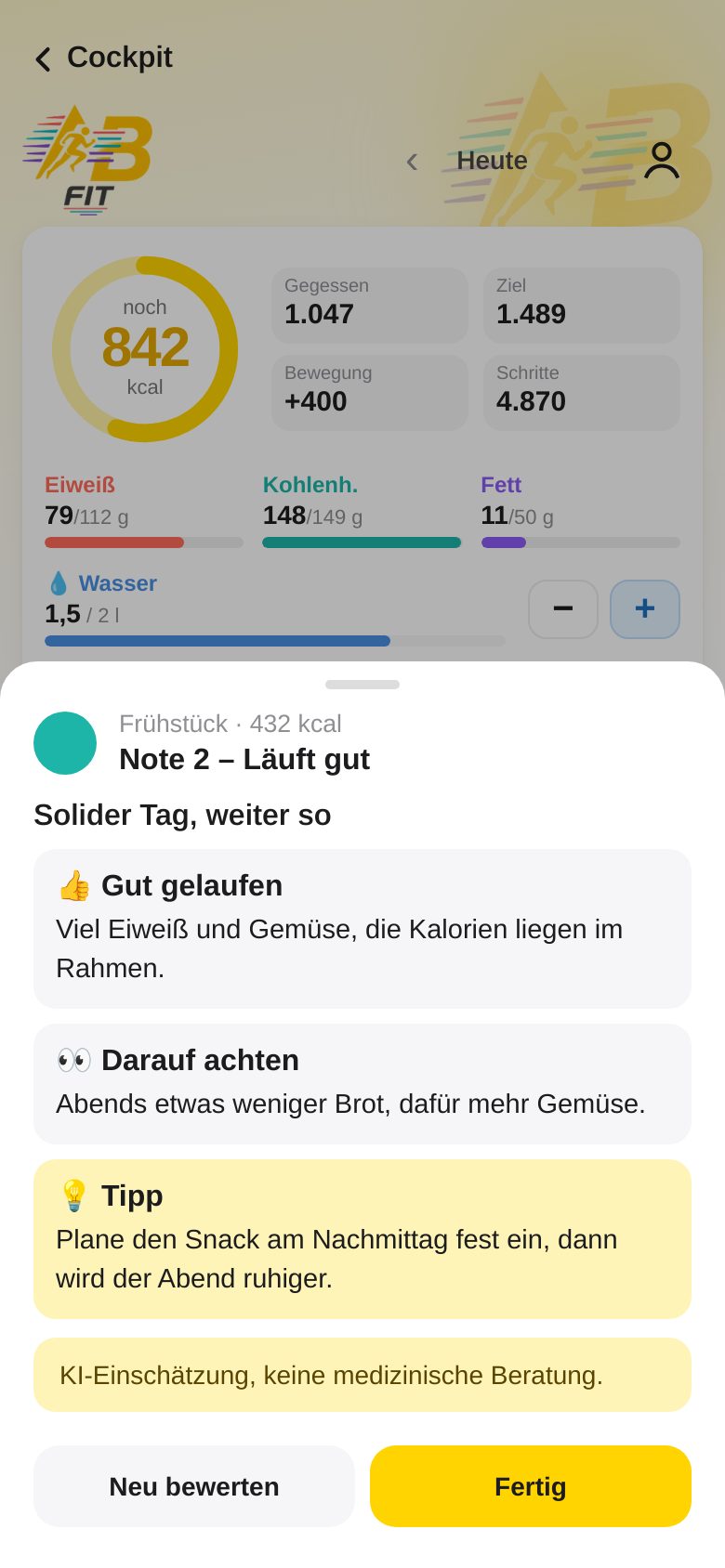
- In the Day overview, scroll down to the Day wrap-up (or open it under More → Day wrap-up).
- Water: tap the matching number of liters (1 – 3 l) or “…” for your own value.
- Rate the day: the AI gives a traffic light, a grade, what went well, what you can watch out for and one concrete tip.
- You can also have each meal rated individually: expand it → Rate meal.
- Below that: your current weight and the week as a bar with calories and water per day.
9. Recipes: paste text
You find recipes in the Food tab via the 📖 Recipes button at the top right.
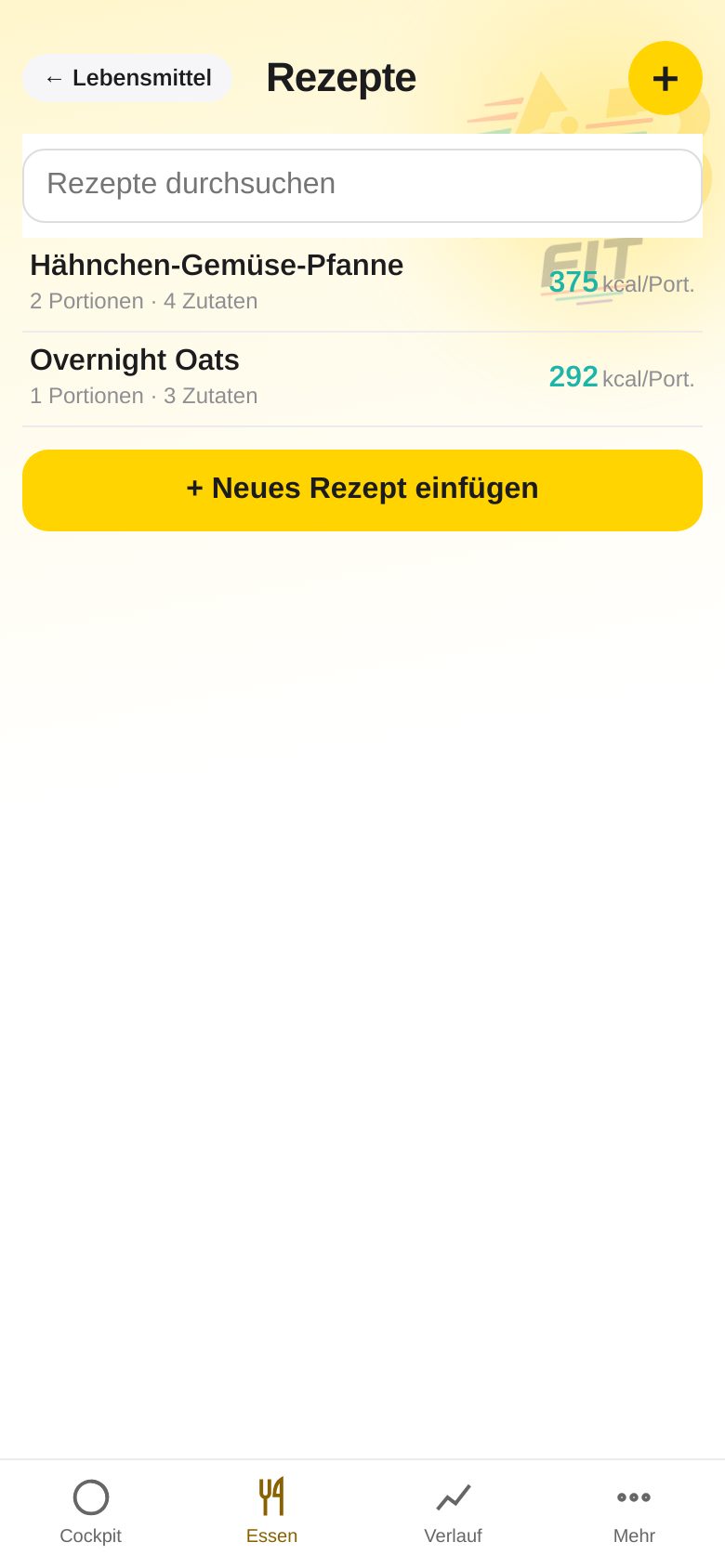
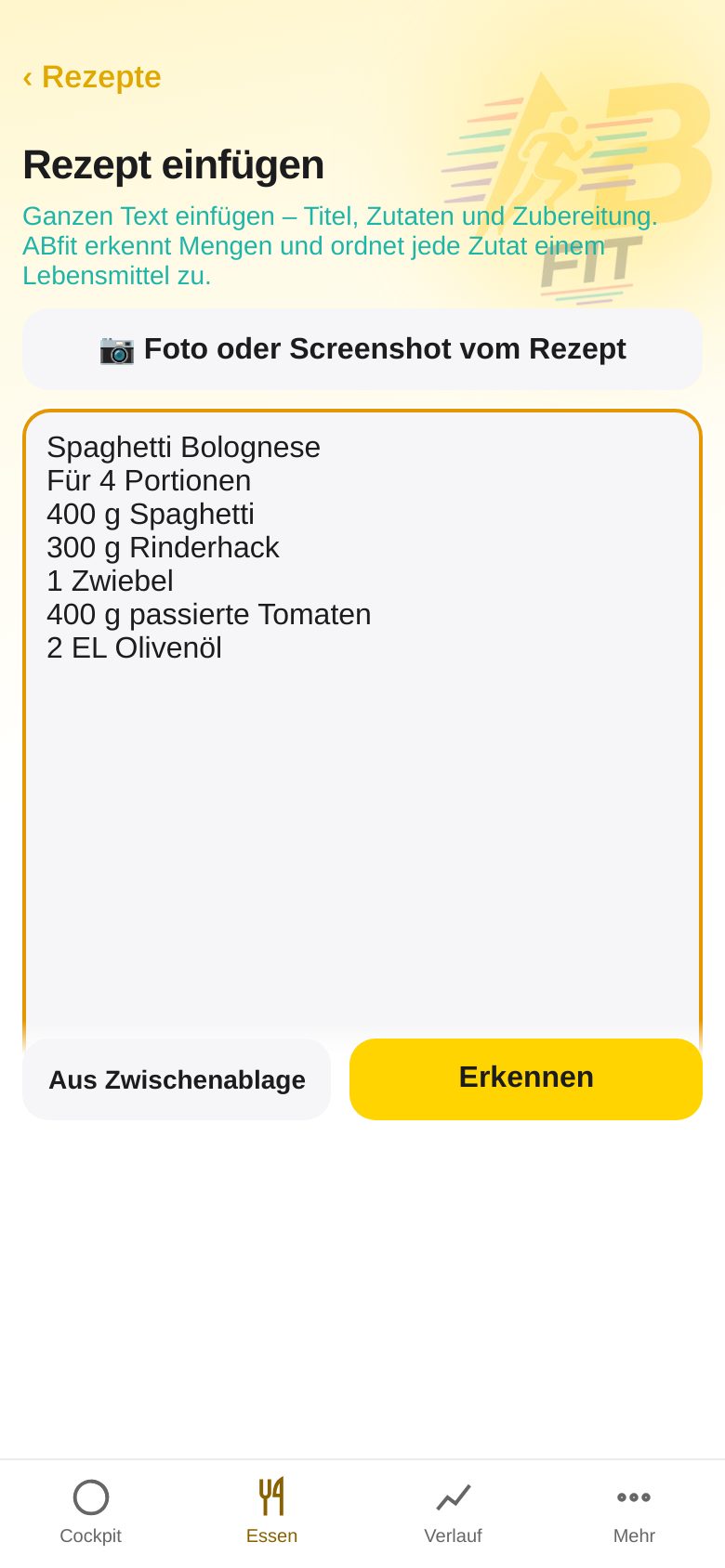
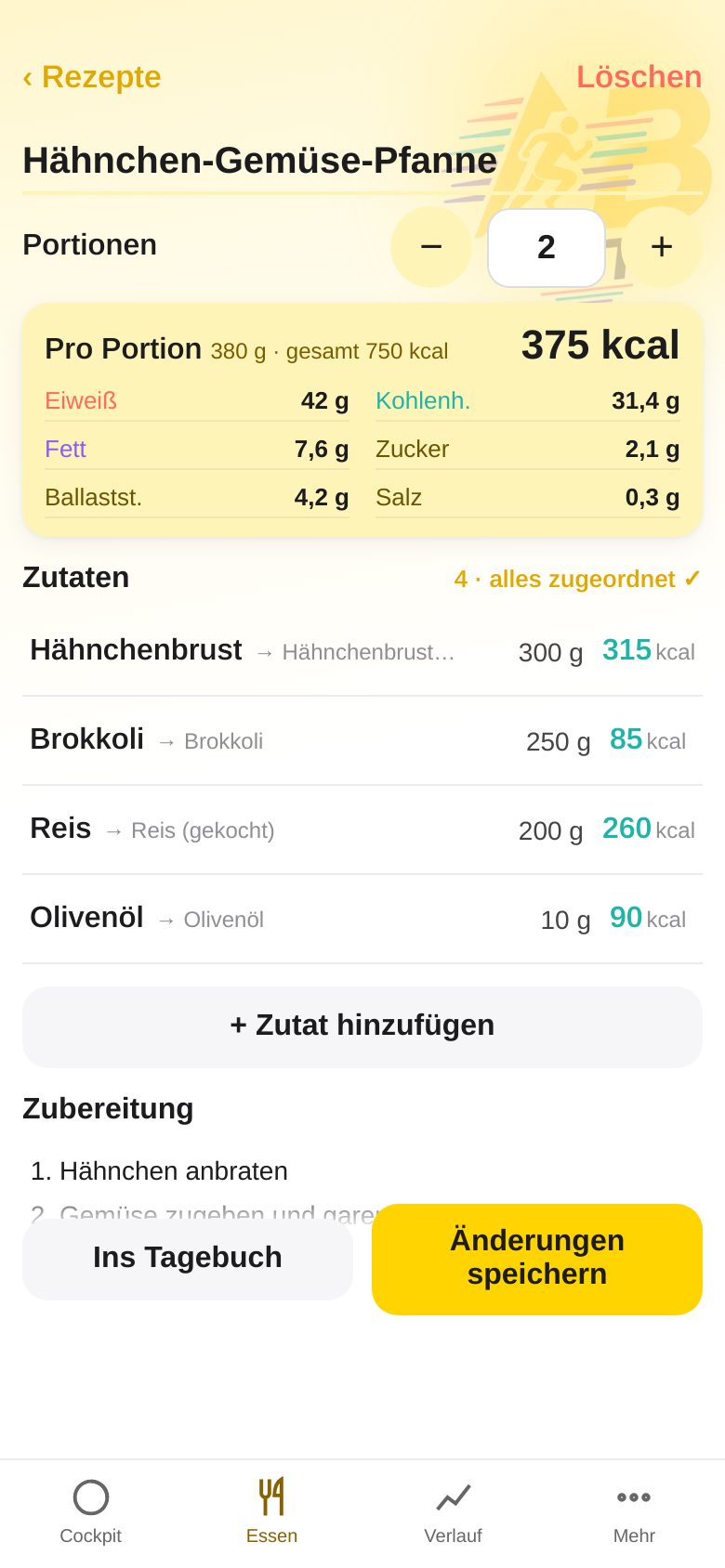
- Tap + Paste new recipe.
- Paste the recipe text (e.g. from a website, a blog or an AI chat) – or tap “From clipboard”.
- Tap Recognize. ABfit matches each ingredient to a food and calculates the nutrition values.
- Check ingredients and servings (adjustable with − / +). Rows with ⚠︎ are not matched yet – tap them and choose the right food.
- Tap Save recipe. With Add to diary you log one serving directly. Saved recipes also appear in the food search (tag “Recipe”).
10. Recipe from a photo
Is the recipe only available as a picture – in a cookbook, in a magazine or as a screenshot? Then you do not need to type anything: an image AI (vision) reads title, ingredients, amounts and servings and creates the recipe for you.
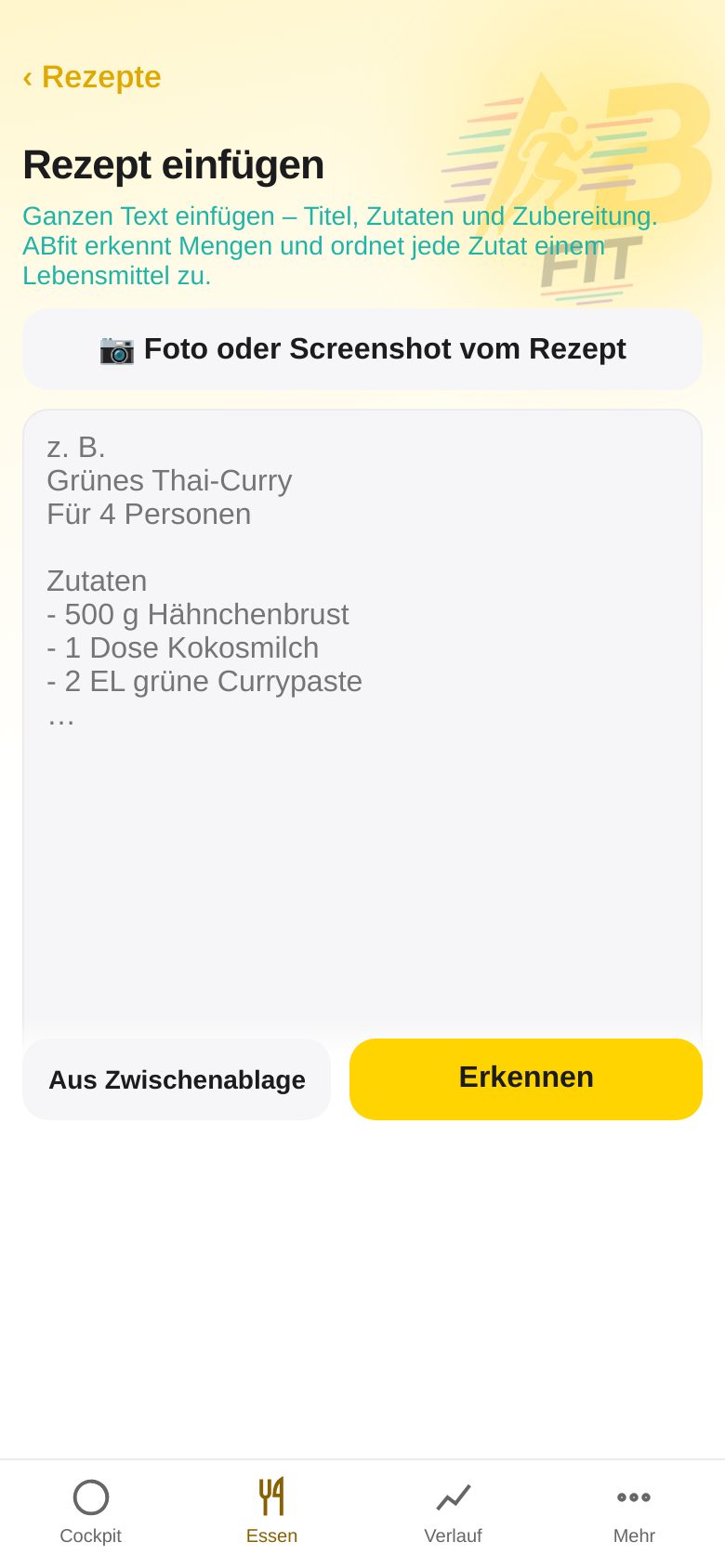
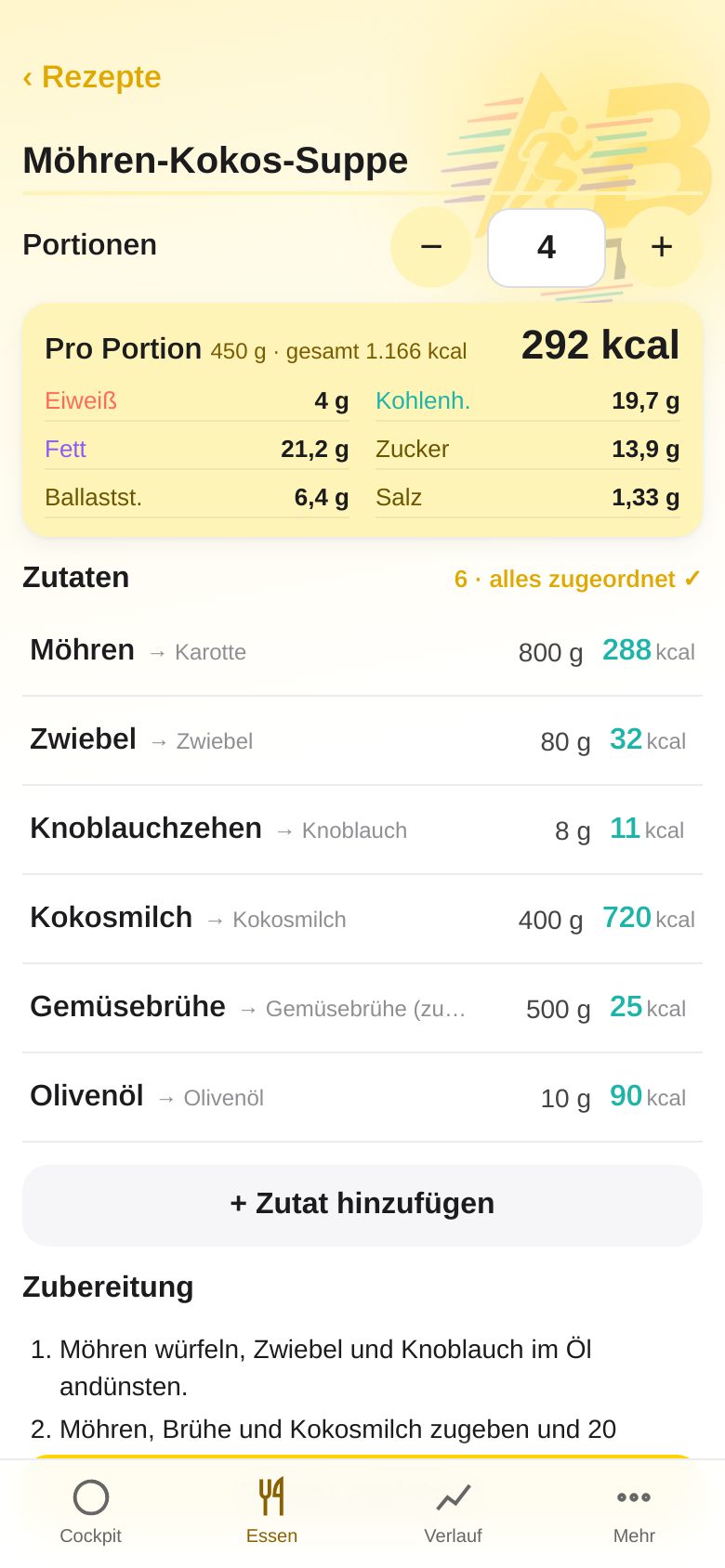
- Open Food → 📖 Recipes → + Paste new recipe.
- Tap 📷 Photo or screenshot of recipe at the top and photograph the page – or choose a screenshot from your photos.
- Wait a moment (“Reading recipe from image …”). ABfit recognizes the title, the number of servings and each ingredient with its amount, and matches them to foods.
- Check the result: adjust servings with − / +, change amounts, tap unmatched rows (⚠︎) and choose the right food, remove rows with ✕.
- Save recipe – the nutrition values per serving appear immediately. With Add to diary you log one serving.
11. History: weight and body fat
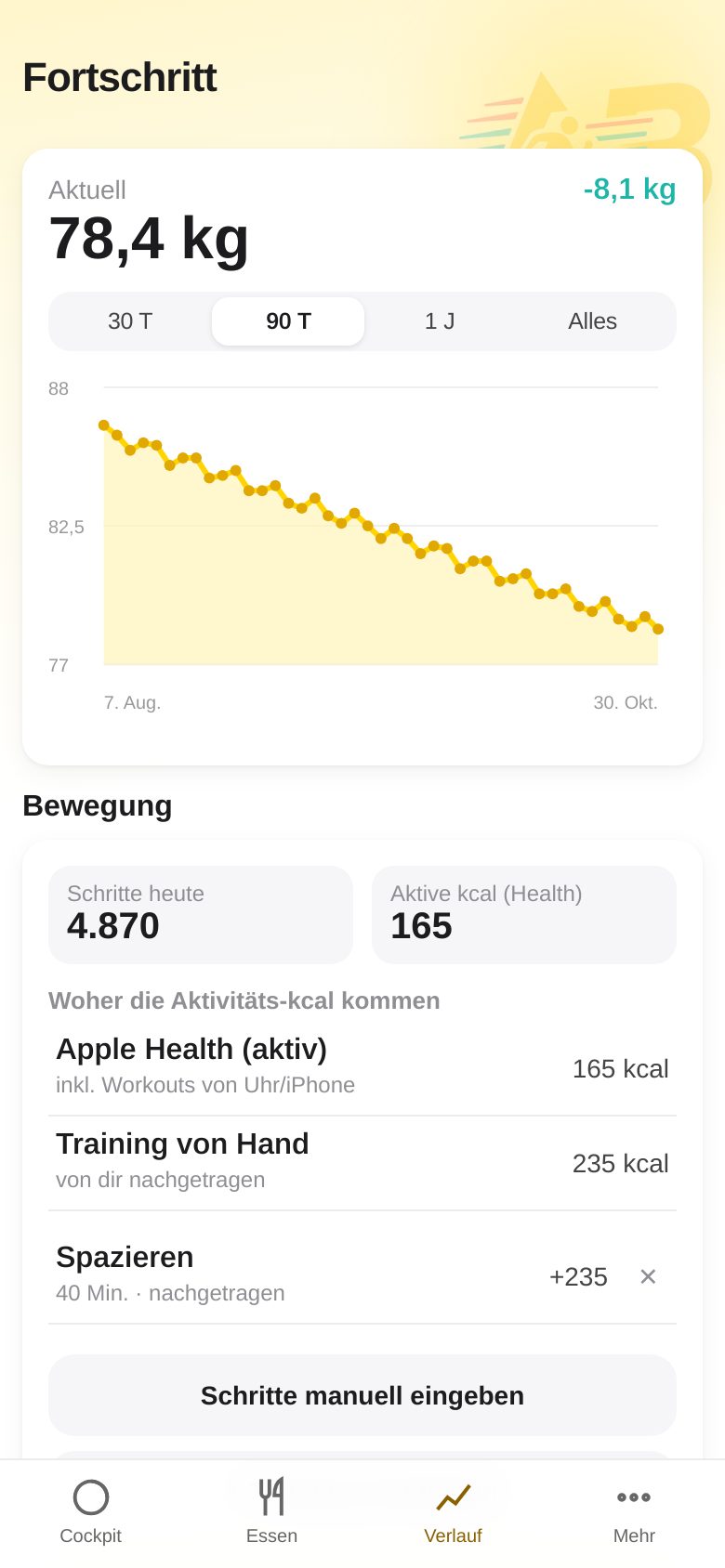
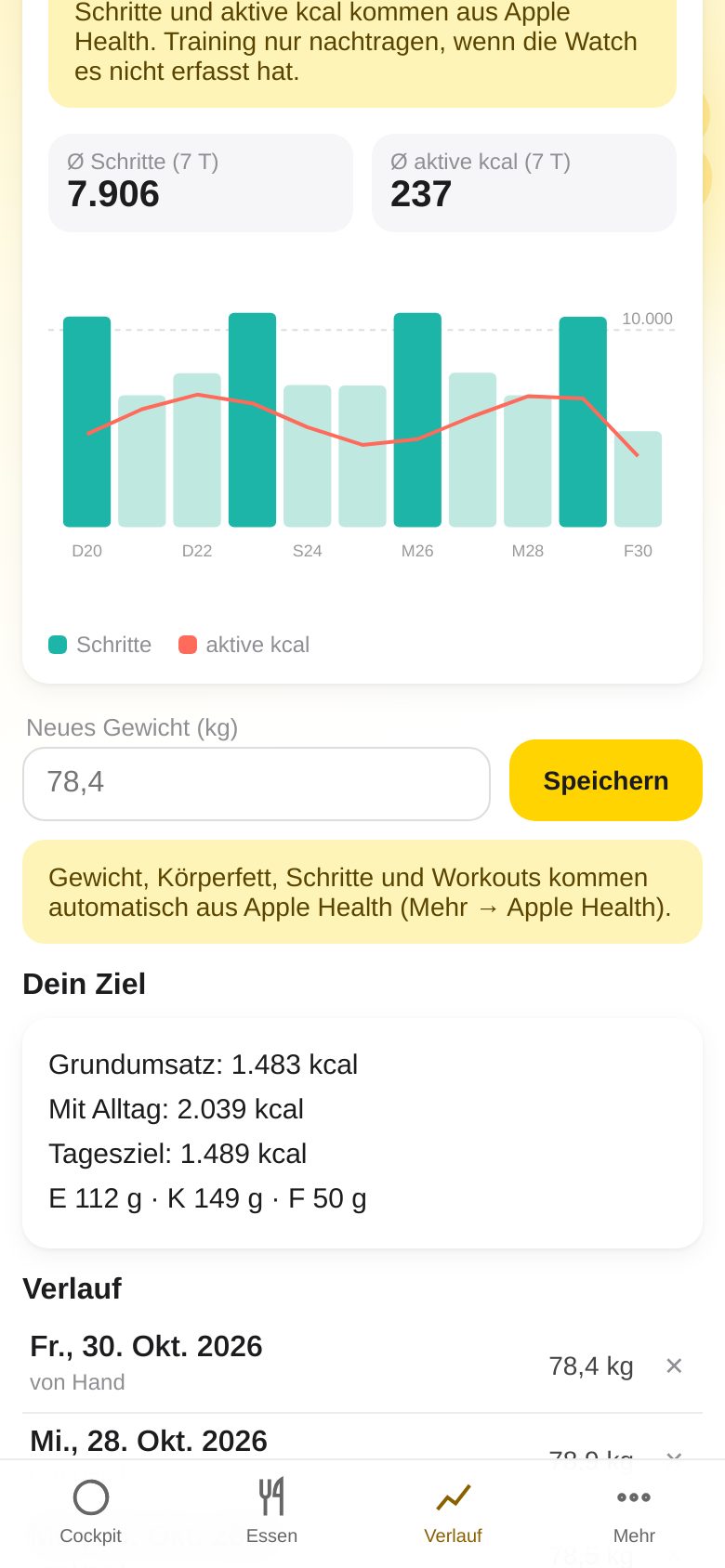
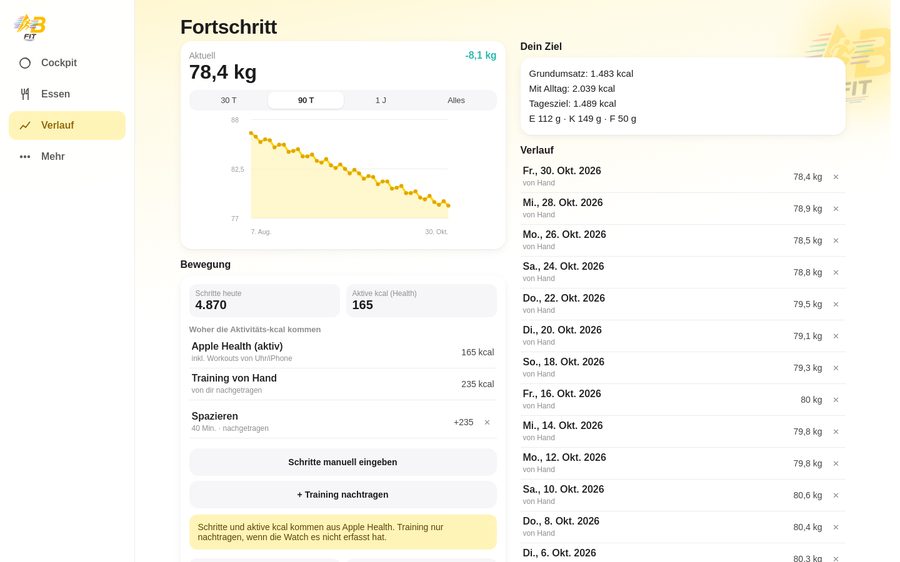
- In the History tab (or by tapping the Weight card in the Cockpit) you see your current weight, the change and – if available – your body fat percentage.
- Choose the period: 30 T, 90 T, 1 J (that is 30 days, 90 days, 1 year) or All.
- New weight: enter it further down and tap Save – or let it come automatically via Apple Health.
- All measurements are listed under History; delete one with ✕.
12. Activity: steps and workouts by hand
Steps and active calories normally arrive automatically from Apple Health. But you can also enter them yourself – for example if your iPhone was not with you or you have not (yet) set up the sync.
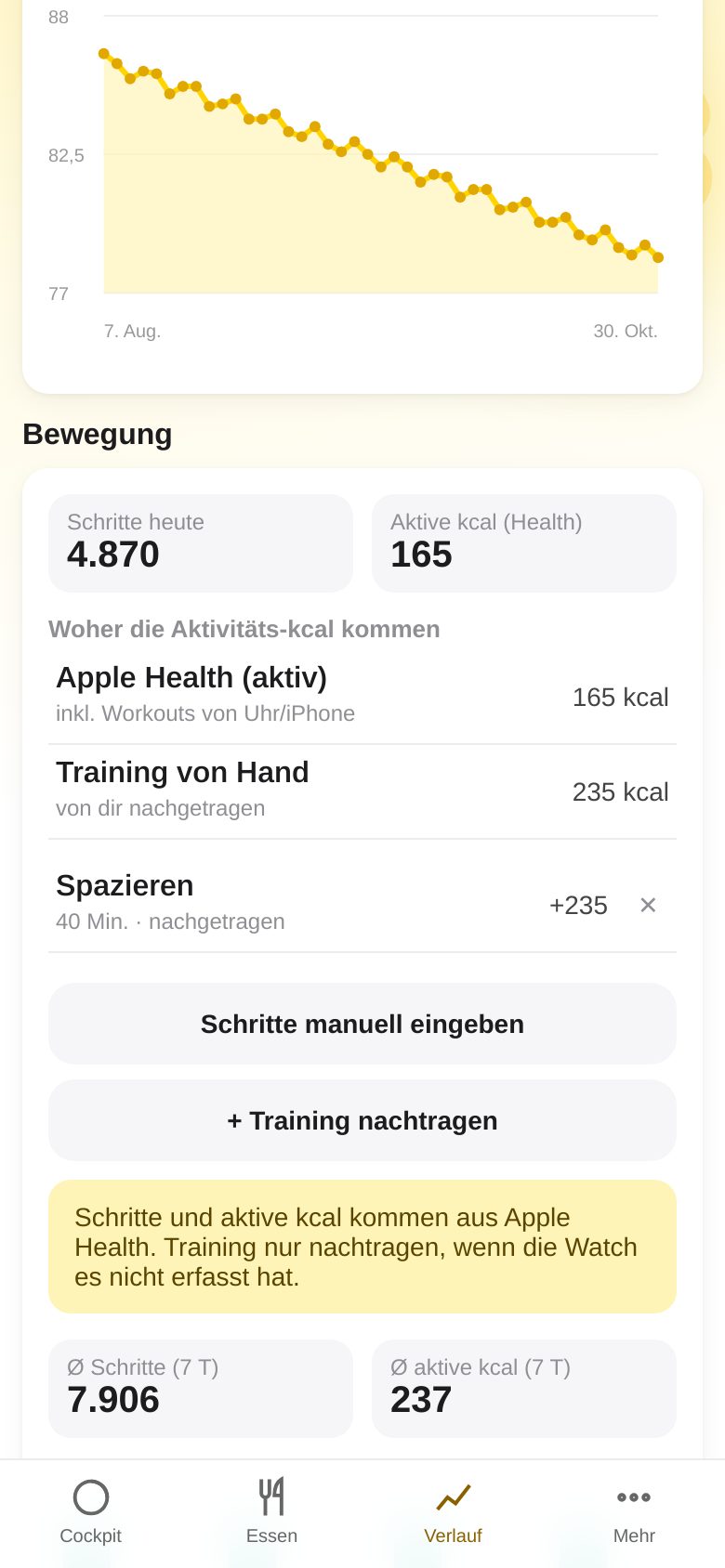
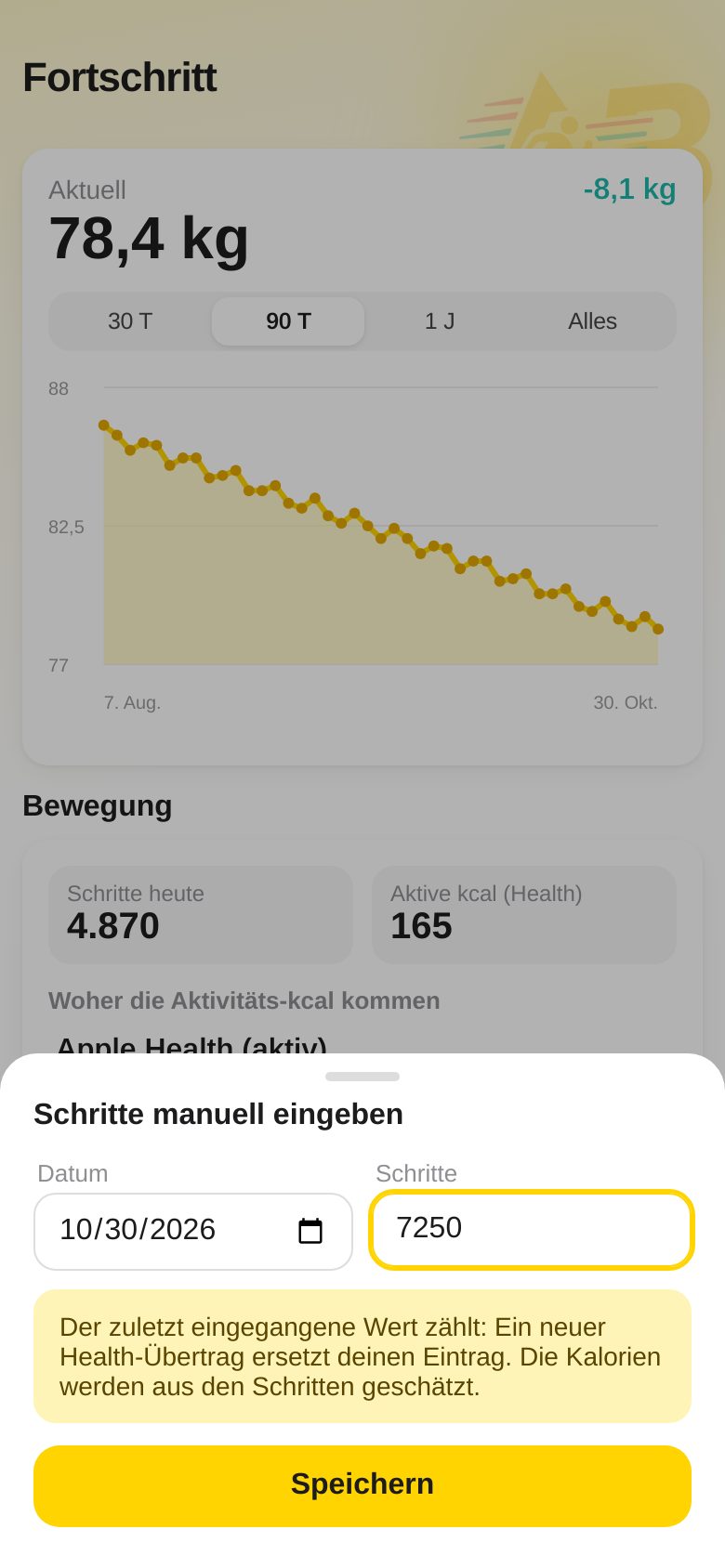
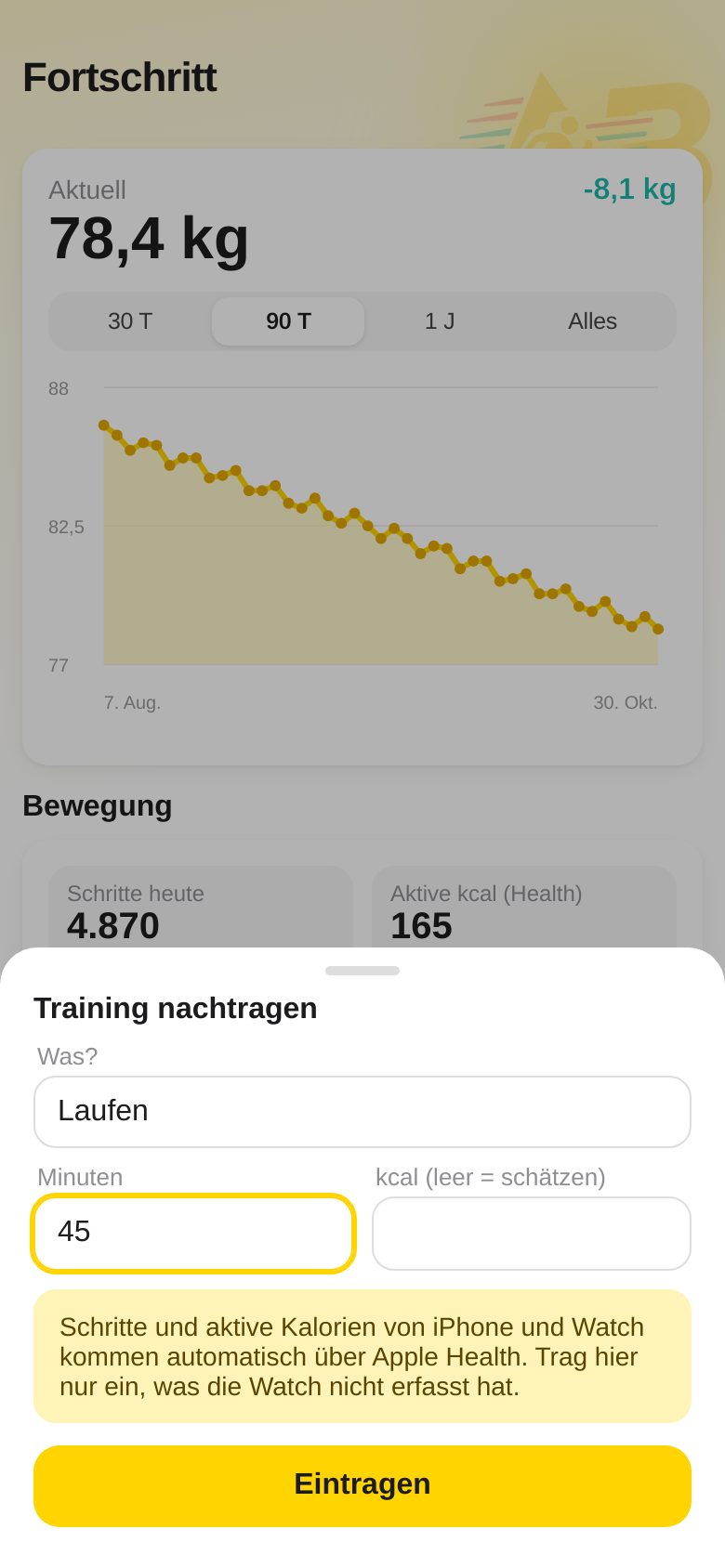
- Open History (or tap Steps in the Cockpit) and scroll to the Activity section.
- Enter steps manually: enter the date and the number of steps → Save. The active calories are estimated from the steps and raise your daily budget.
- + Log workout: What? (e.g. Running), Minutes, optionally kcal (empty = ABfit estimates) → Add. Only needed if your watch did not record the workout.
- The most recently entered value counts: steps and active kcal that you enter by hand apply to the day until a real transfer from Apple Health arrives. Then the Health values replace your entry; if a transfer has no values for that day, your entry stays.
- With the ✕ next to a logged workout you delete it again.
13. Medications
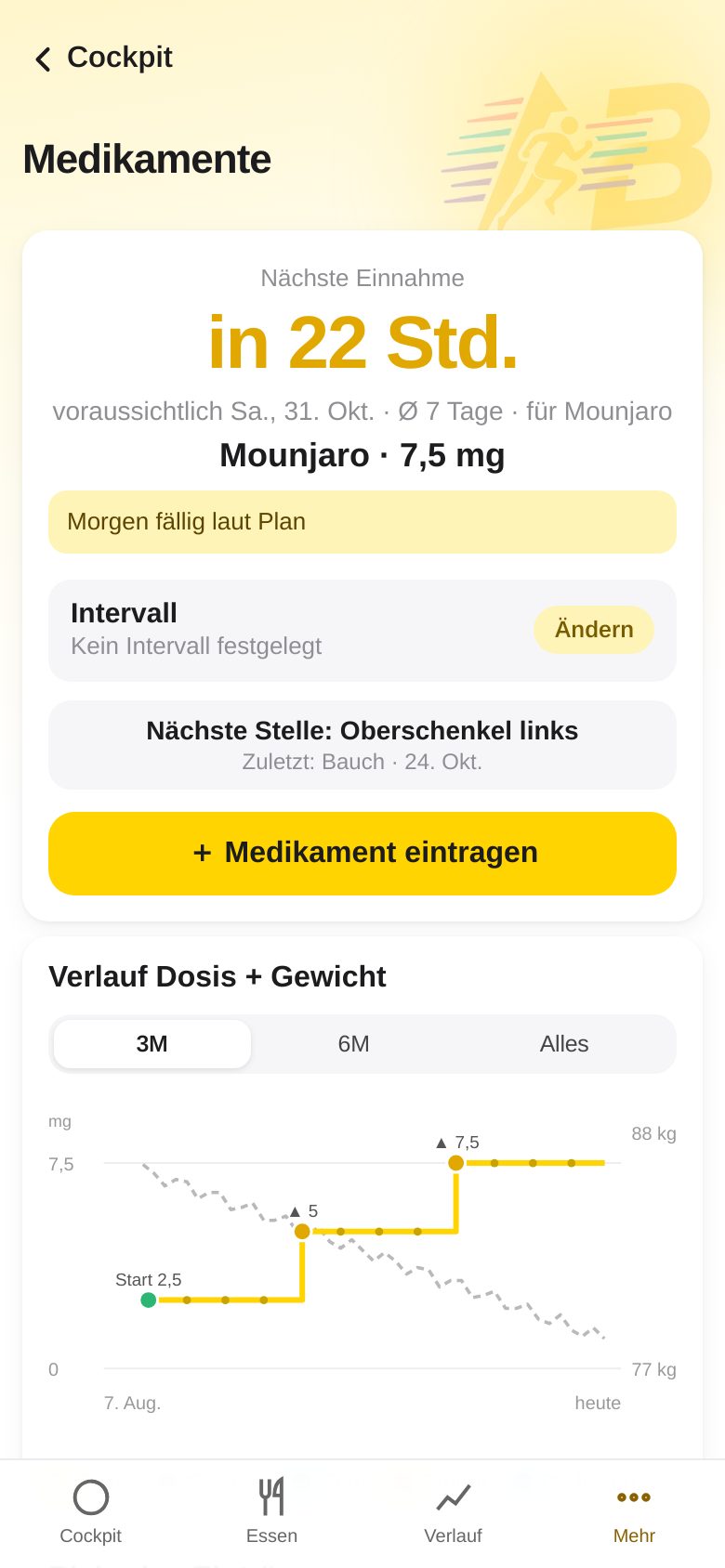
The Medications page is your medication diary – for example for a GLP-1 therapy. ABfit shows only what you have entered yourself. You reach it in two ways: via the medication hint in the Cockpit (it appears when a dose is due) and at any time via More → Log & dose curve or More → Log medication.
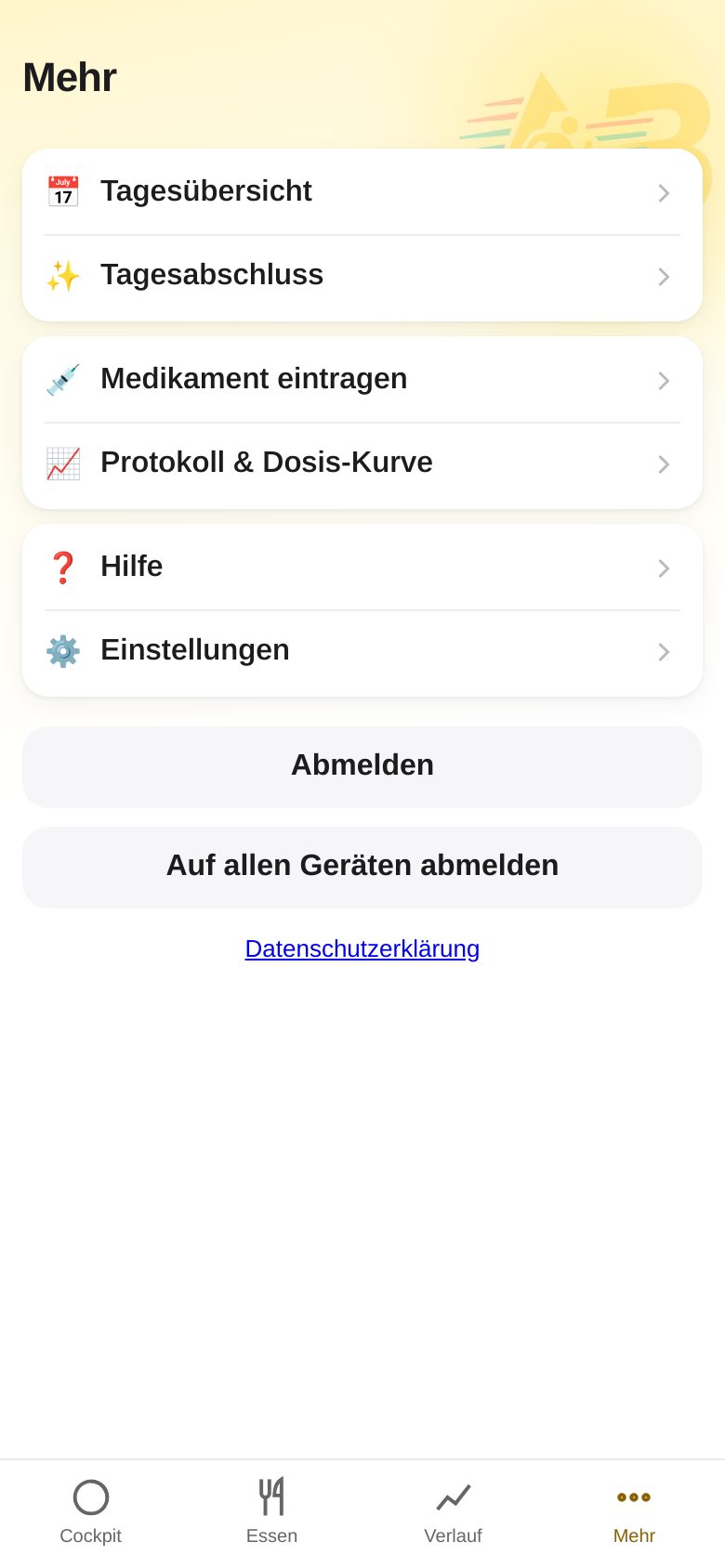
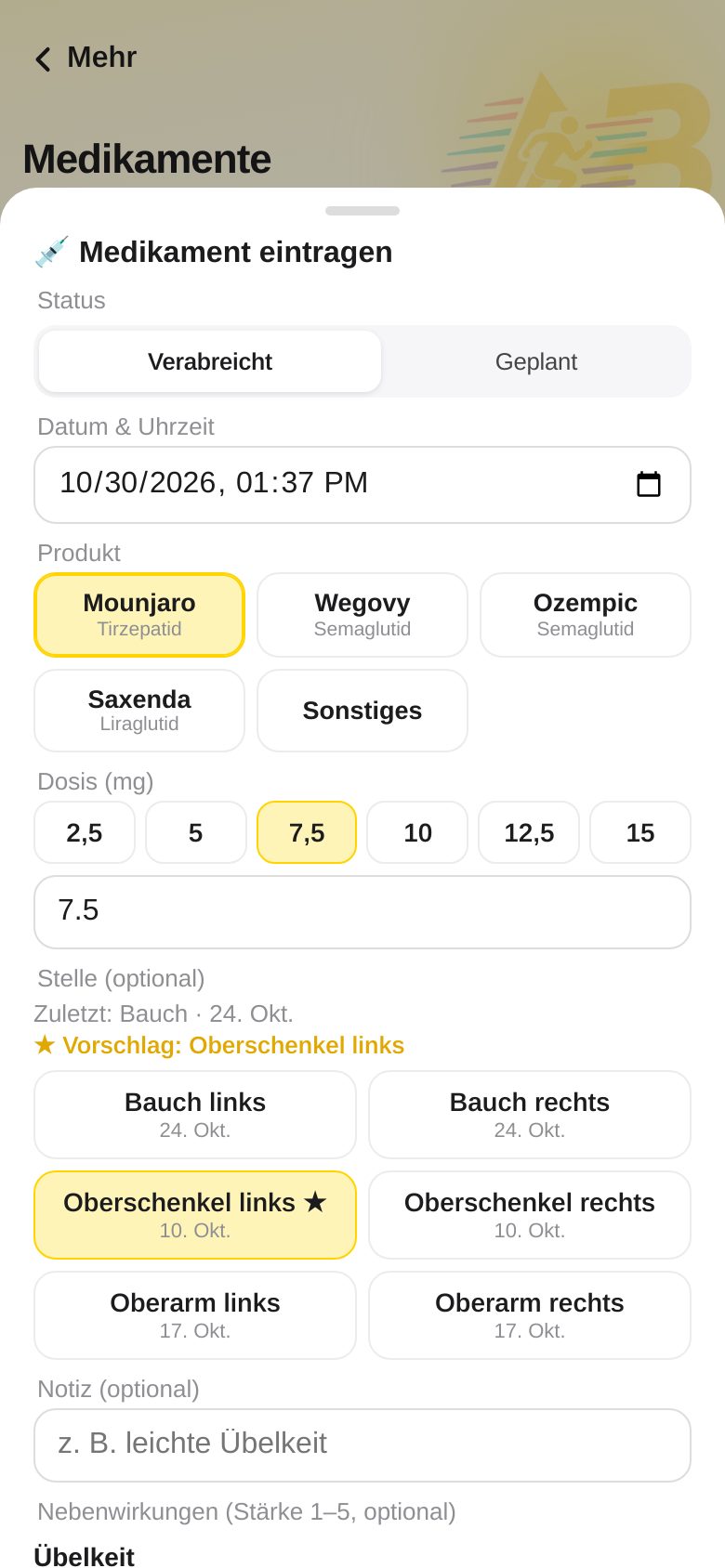
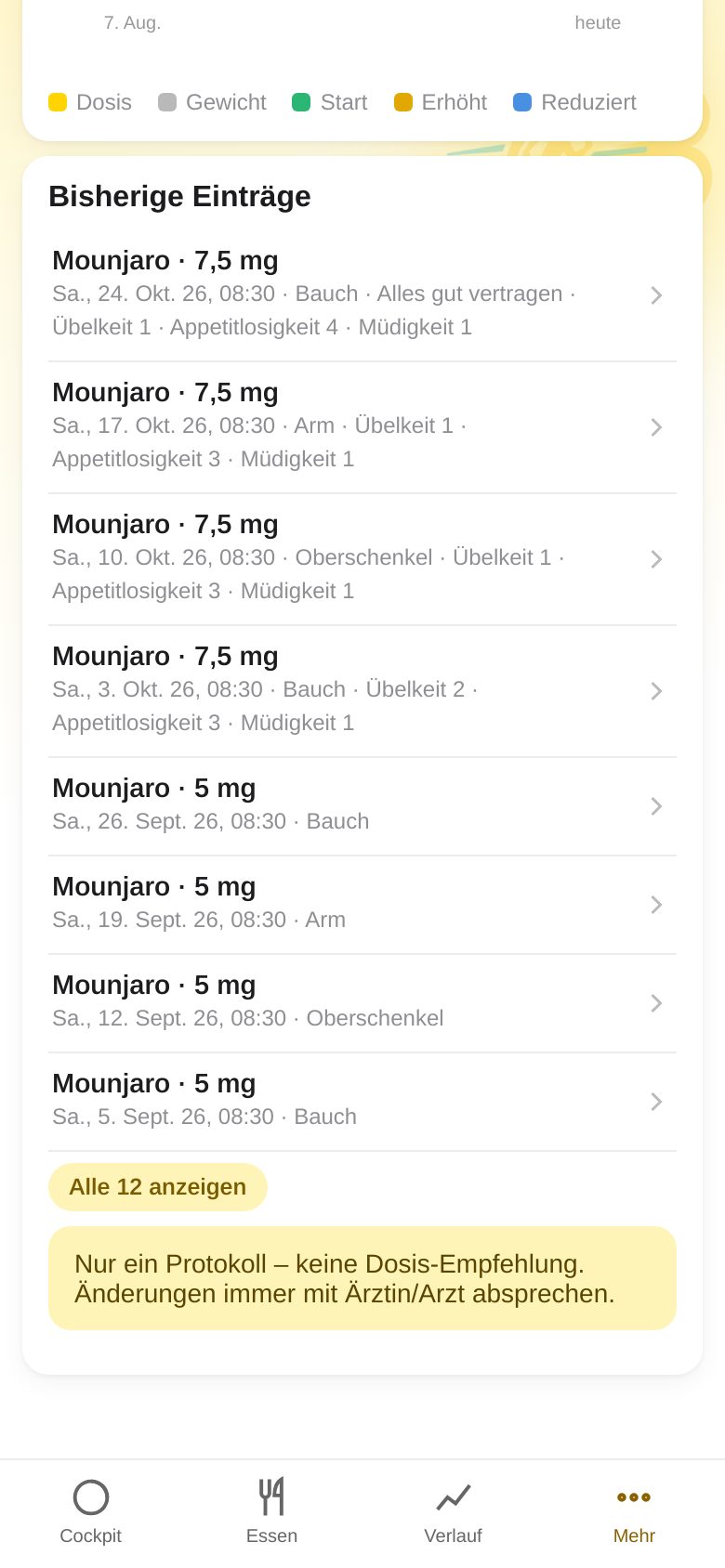
- Tap + Log medication (or go directly via More → Log medication).
- Check Date & time, choose the Product (or “Other” with your own name), tap or type the Dose, optionally Site (belly, thigh, arm), a note and side effects (strength 1–5).
- Save. The chart “Dose + weight trend” shows your logged doses together with your weight (3M, 6M or All).
- At the top is “Next dose”: it is calculated only from your past intervals. Under Past entries you tap an entry to change or delete it.
- If the same site was used several times in a row, ABfit reminds you to rotate.
14. Settings: profile and goals
- Open More → Settings – or tap the yellow profile icon at the top right of the Cockpit.
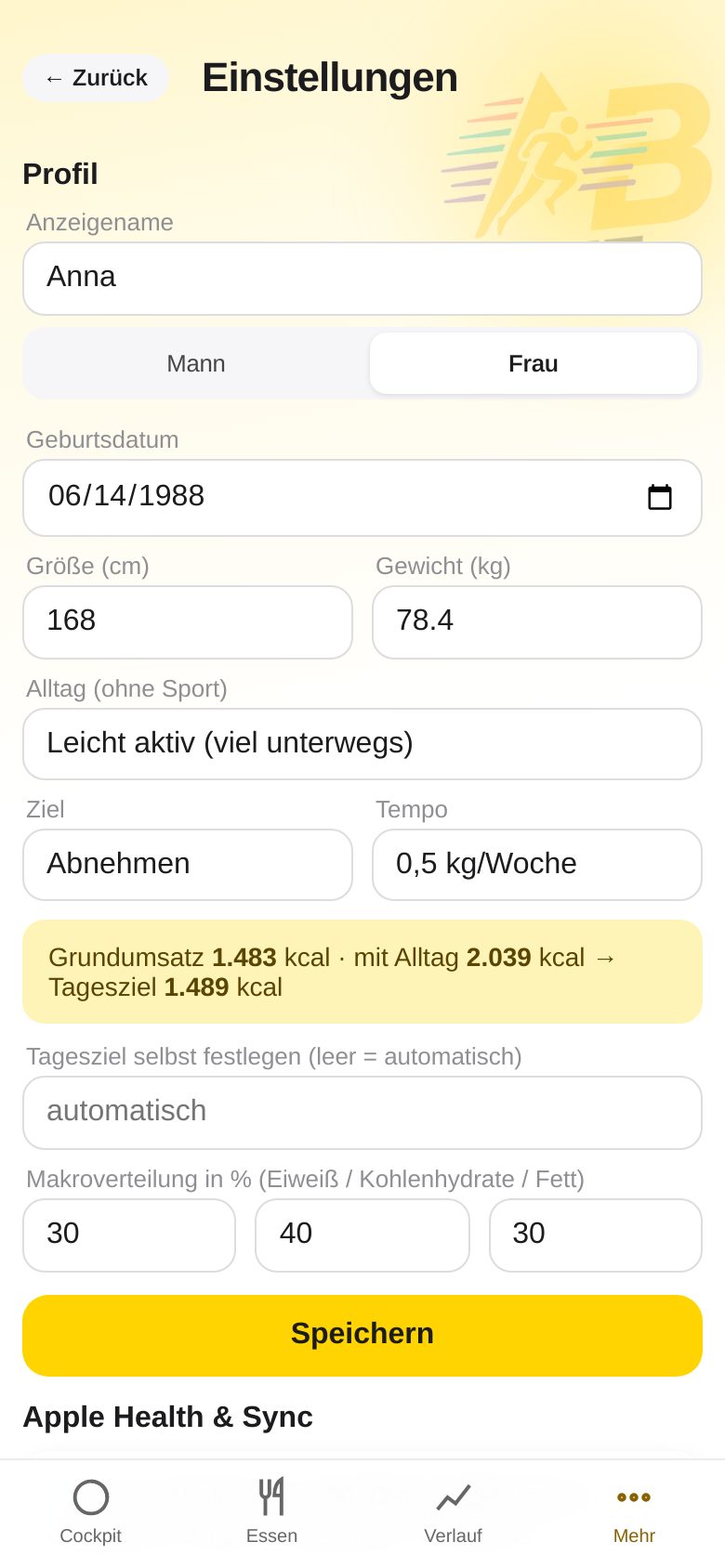
- Enter sex, date of birth, height and weight.
- Choose your Daily activity (no sport), your Goal (lose weight, maintain weight, gain weight) and the Pace.
- ABfit calculates your daily goal from this. You can also set it yourself.
- Optionally the Macro split in percent (together 100 %).
- Save – the new goal applies immediately.
15. Choose a language (6 languages)
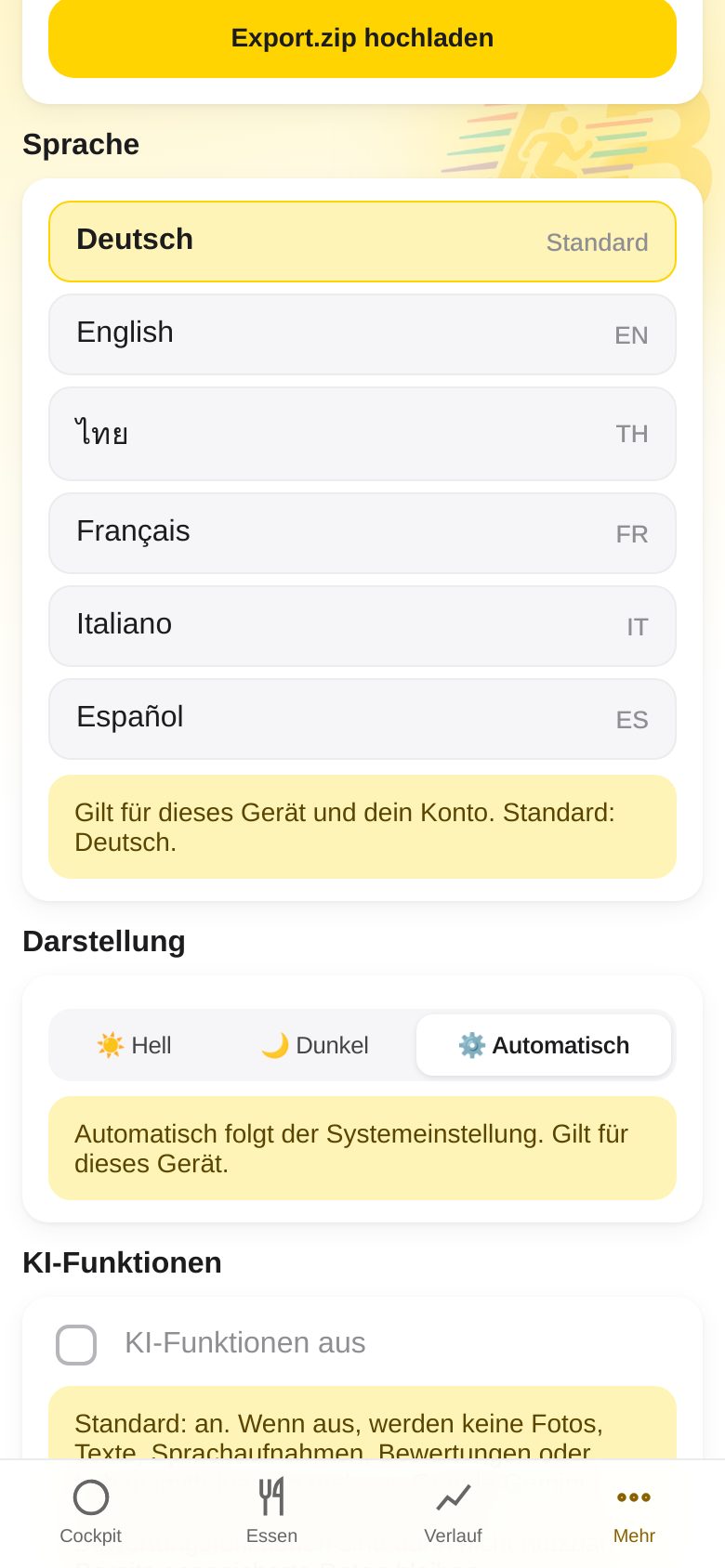
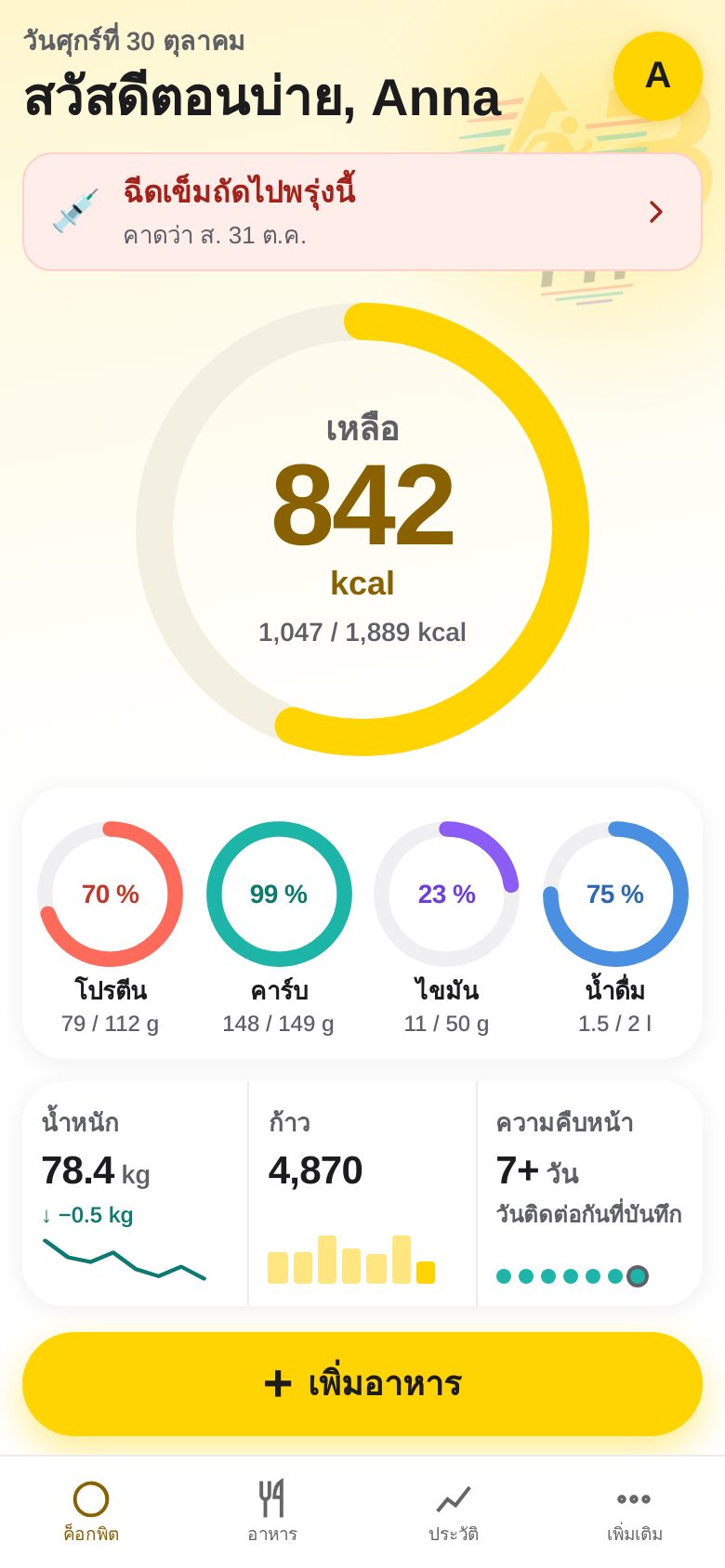
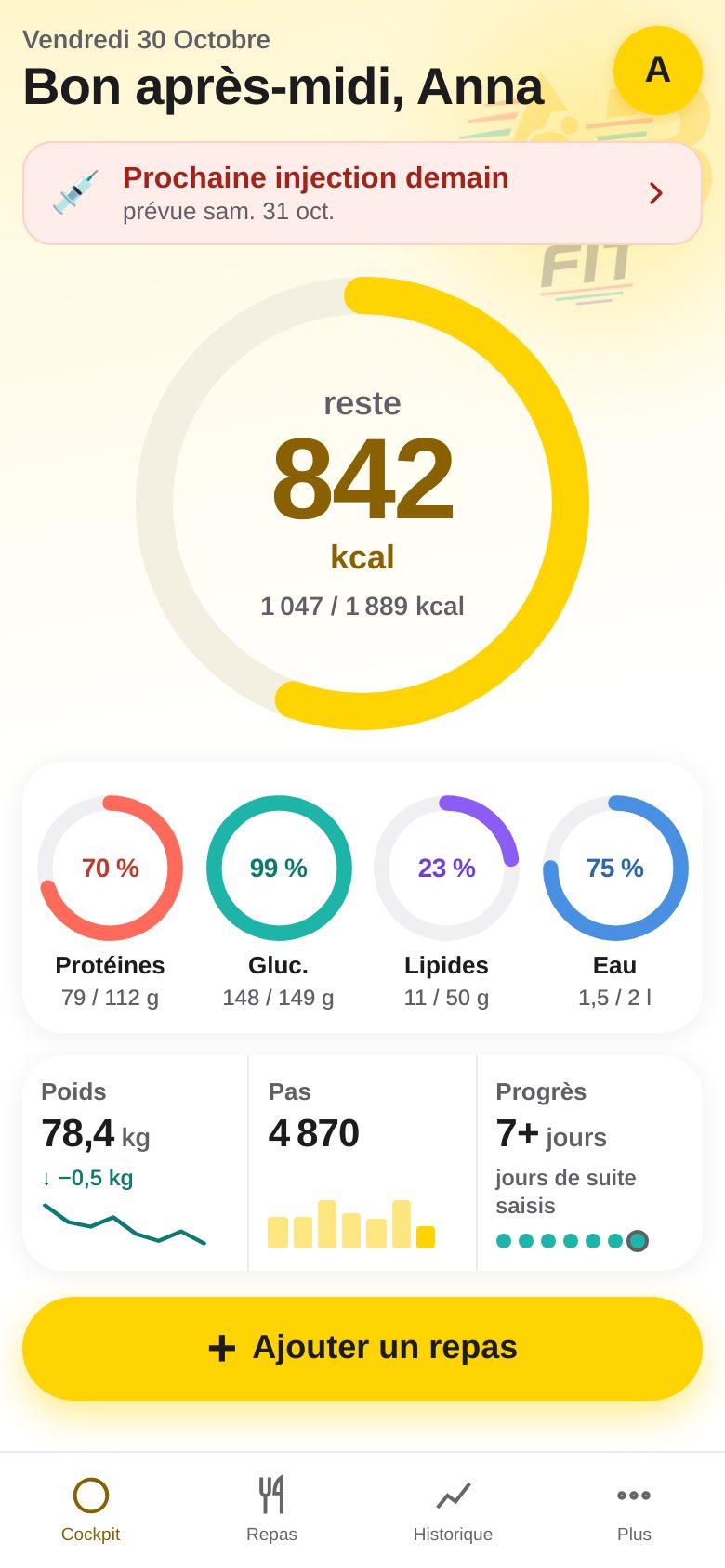
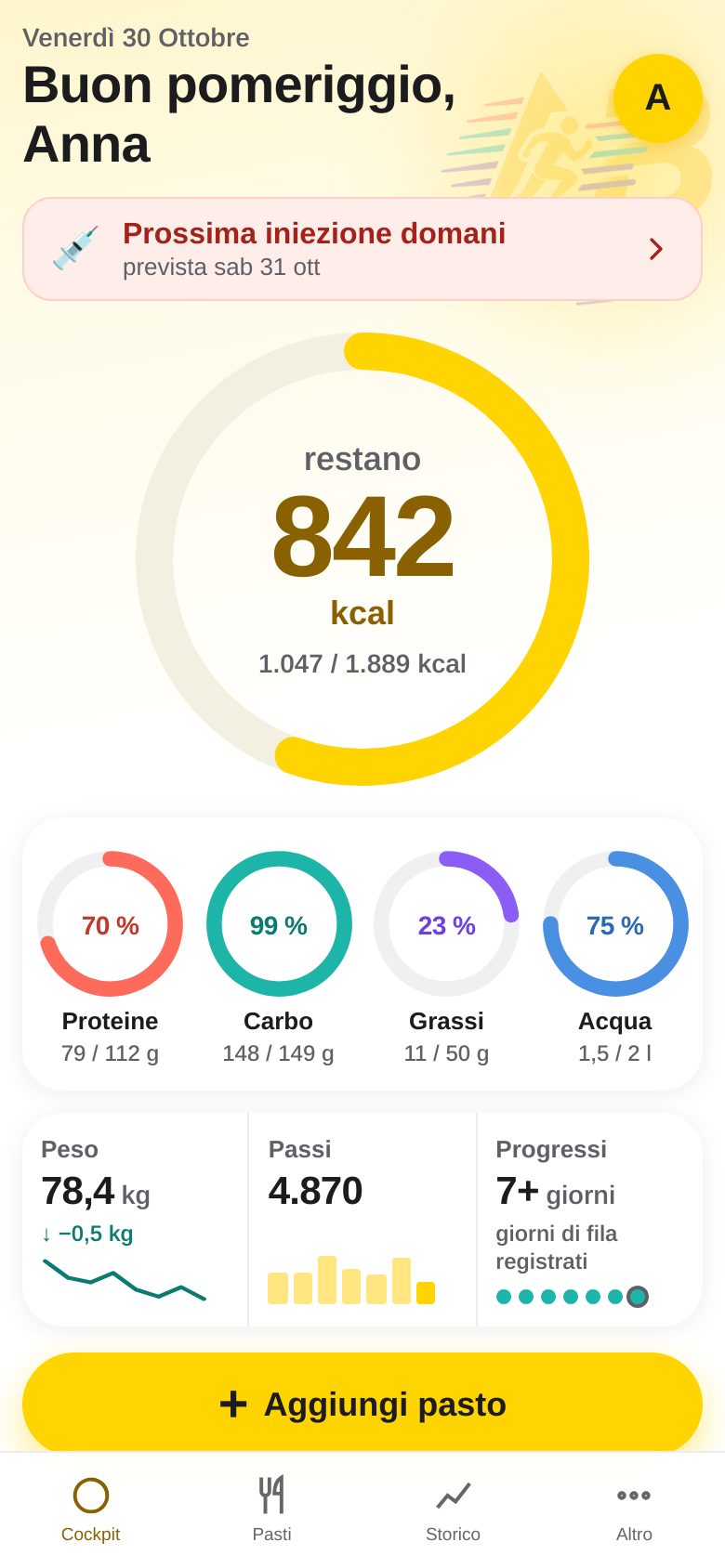
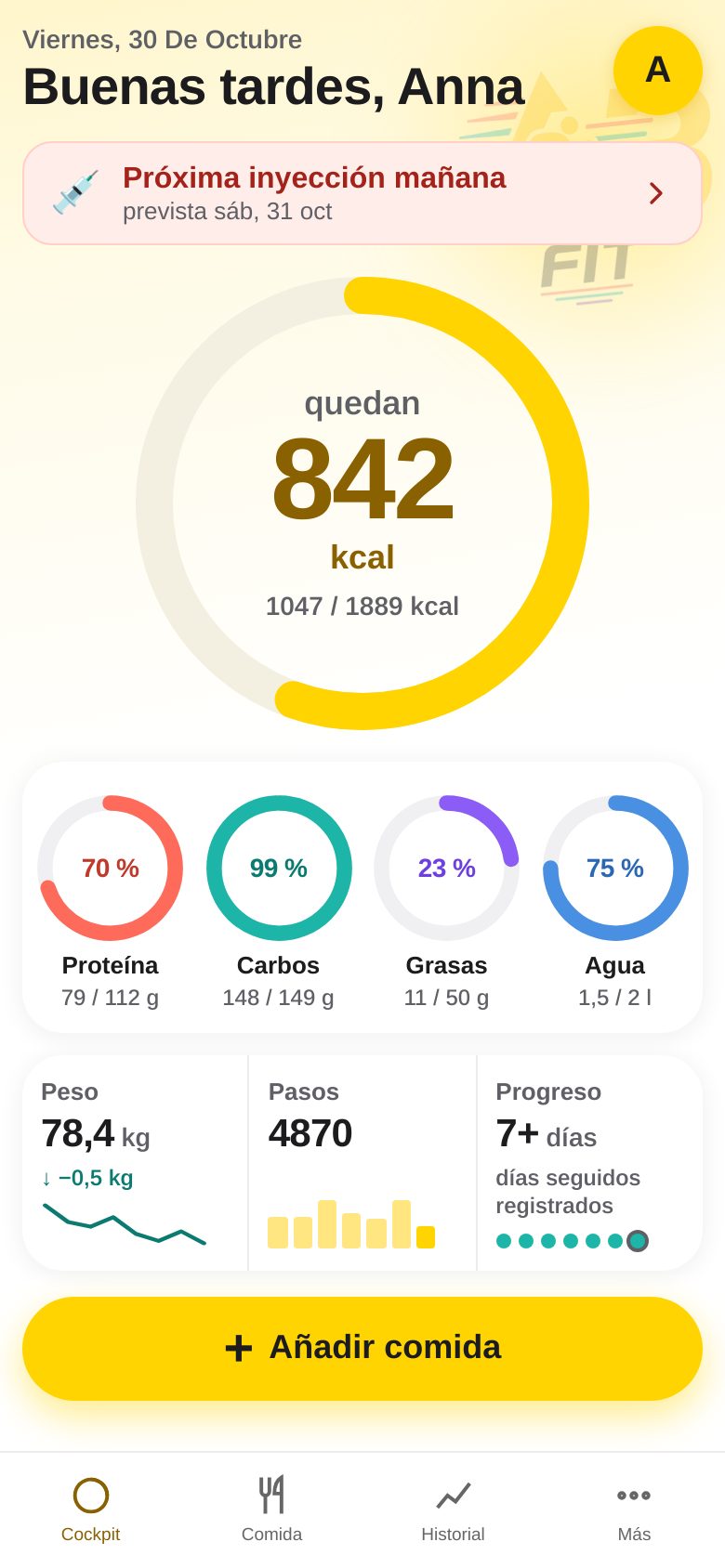
ABfit is available in six languages: Deutsch, English, ไทย (Thai), Français, Italiano and Español. The default language is German.
- Open More → Settings and scroll to Language.
- Tap the language you want. The app switches immediately.
- The choice applies to this device and your account.
16. Change password and account
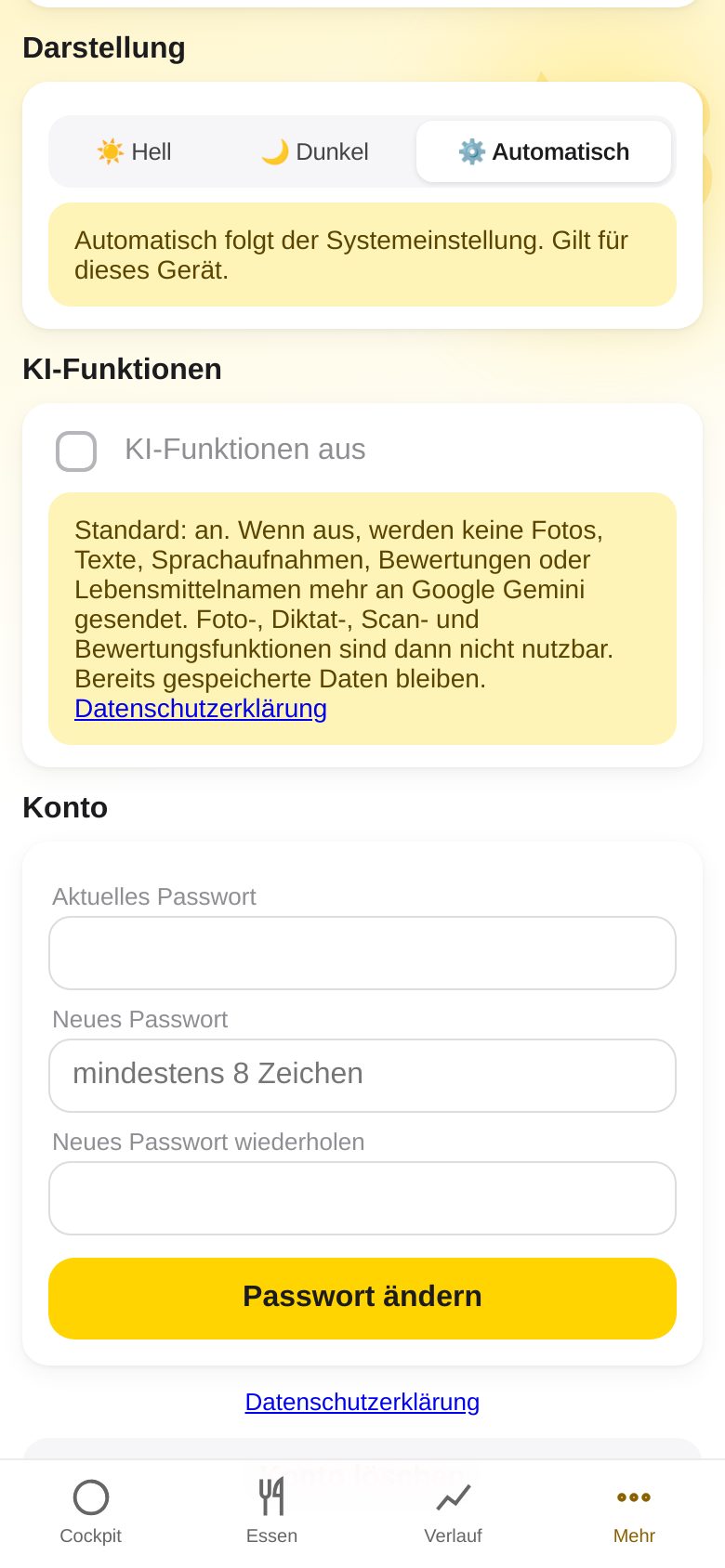
- Open More → Settings and scroll to Account.
- Enter your Current password.
- Type the New password twice (at least 8 characters) and tap Change password.
- With Delete account (at the very bottom, red) you permanently remove, after confirmation, all your entries, recipes, weights, Health data and medications – this cannot be undone.
17. Connect Apple Health
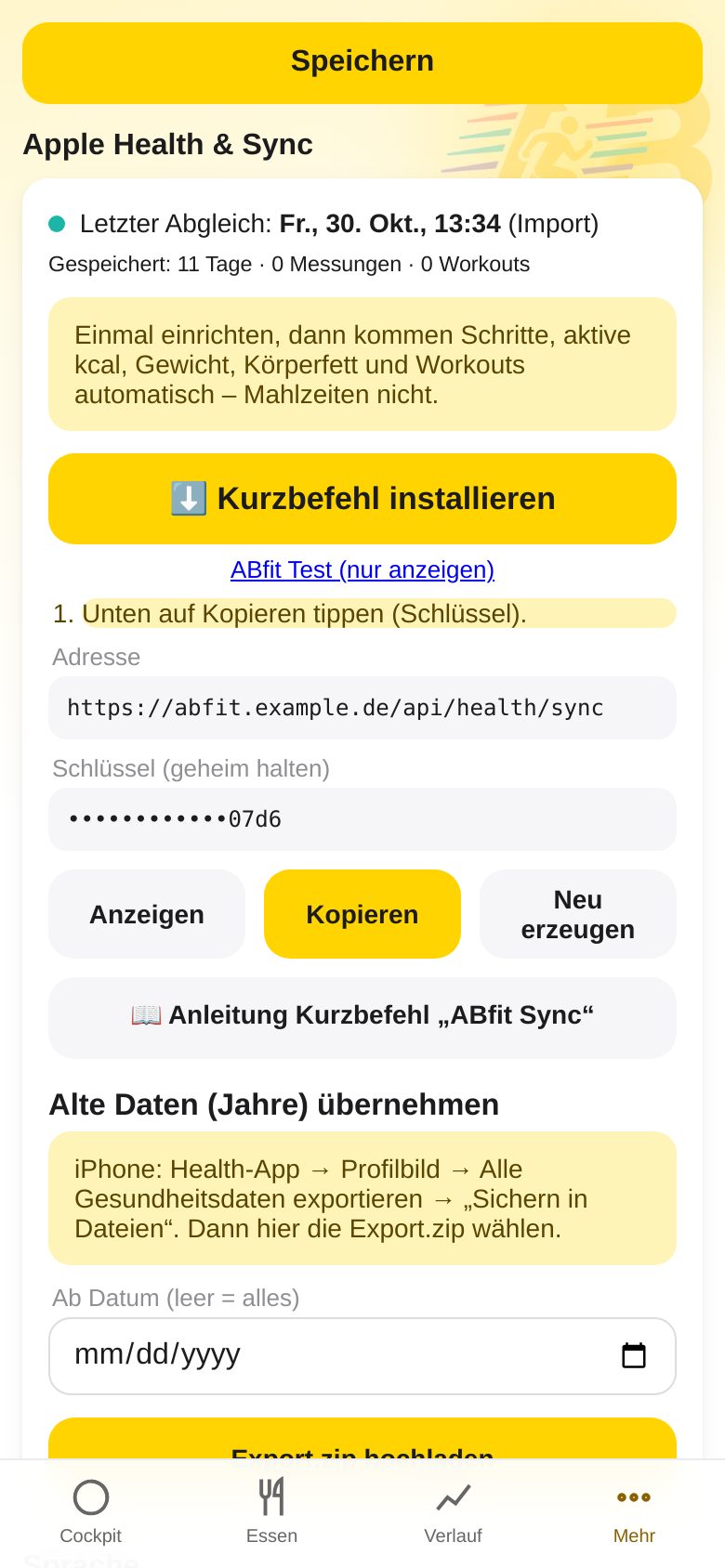
With the shortcut “ABfit Sync”, your iPhone sends steps, active calories, weight, body fat and workouts to ABfit. Set it up once – after that it runs automatically. (Without Health you enter steps and workouts by hand, section 12.)
A) Install the shortcut
- In ABfit open More → Settings → Apple Health & Sync and tap Copy next to “Key”. (Never share the key.)
- Tap ⬇️ Install shortcut → Add Shortcut.
- Paste the copied key into the field → Add.
- Tap the shortcut once and allow access to Health (turn on all categories). When asked about the internet address, choose Always Allow.
- A message with the result appears at the top; in ABfit you see “Last sync”.
B) Allow large amounts of data
- Open iPhone Settings → Apps → Shortcuts → Advanced.
- Turn on “Allow Sharing Large Amounts of Data”. Otherwise the sync aborts when there are many values.
- It is best to also allow “Allow Running Scripts” or confirm scripting prompts, if your iPhone asks for it.
C) Automation: automatically several times a day
- Open the Shortcuts app → Automation at the bottom → + (or “New Automation”).
- Choose Time of Day → e.g. 9:00 → Daily.
- Choose Run Immediately and turn “Notify When Run” off → Next.
- Select ABfit Sync → Done.
- Repeat for more times, e.g. 13:00, 18:00 and 21:30.
- Also possible: + → App → Health → “Is Opened” → Run Immediately → ABfit Sync.
D) Import old data (years)
- Health app → profile picture at the top right → Export All Health Data → Export.
- Choose Save to Files.
- In ABfit: More → Settings → Apple Health & Sync → Upload Export.zip → choose the file (optionally “From date”).
- The bar shows the progress – keep the app open until the end.
18. Appearance: Light and Dark
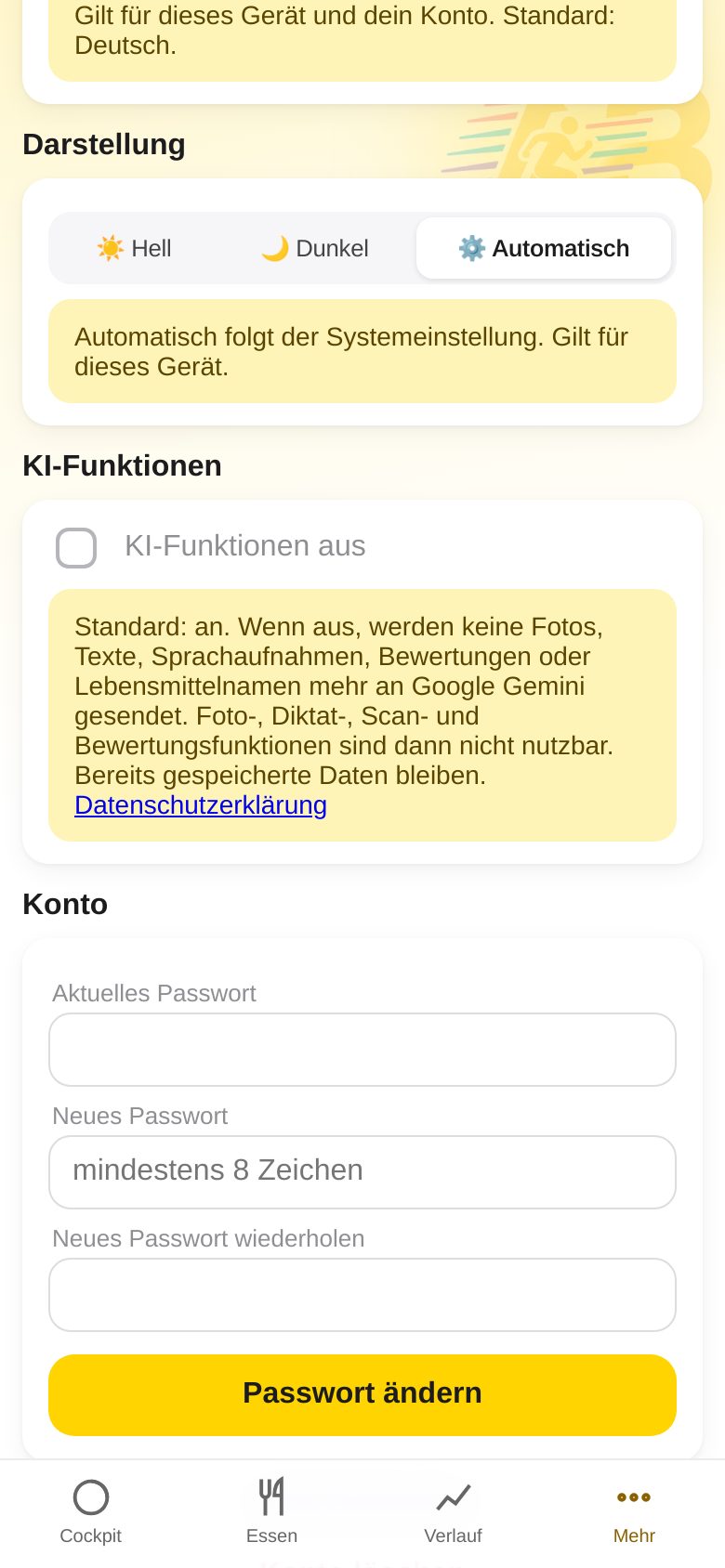
- Open More → Settings and scroll to Appearance.
- Automatic follows your device’s setting (light by day, dark at night, if set that way).
- Light or Dark forces that appearance.
- The setting applies to this device.
19. iPad and computer
ABfit adapts to the screen size – you do not need to switch anything, and it is always the same data as on the iPhone.
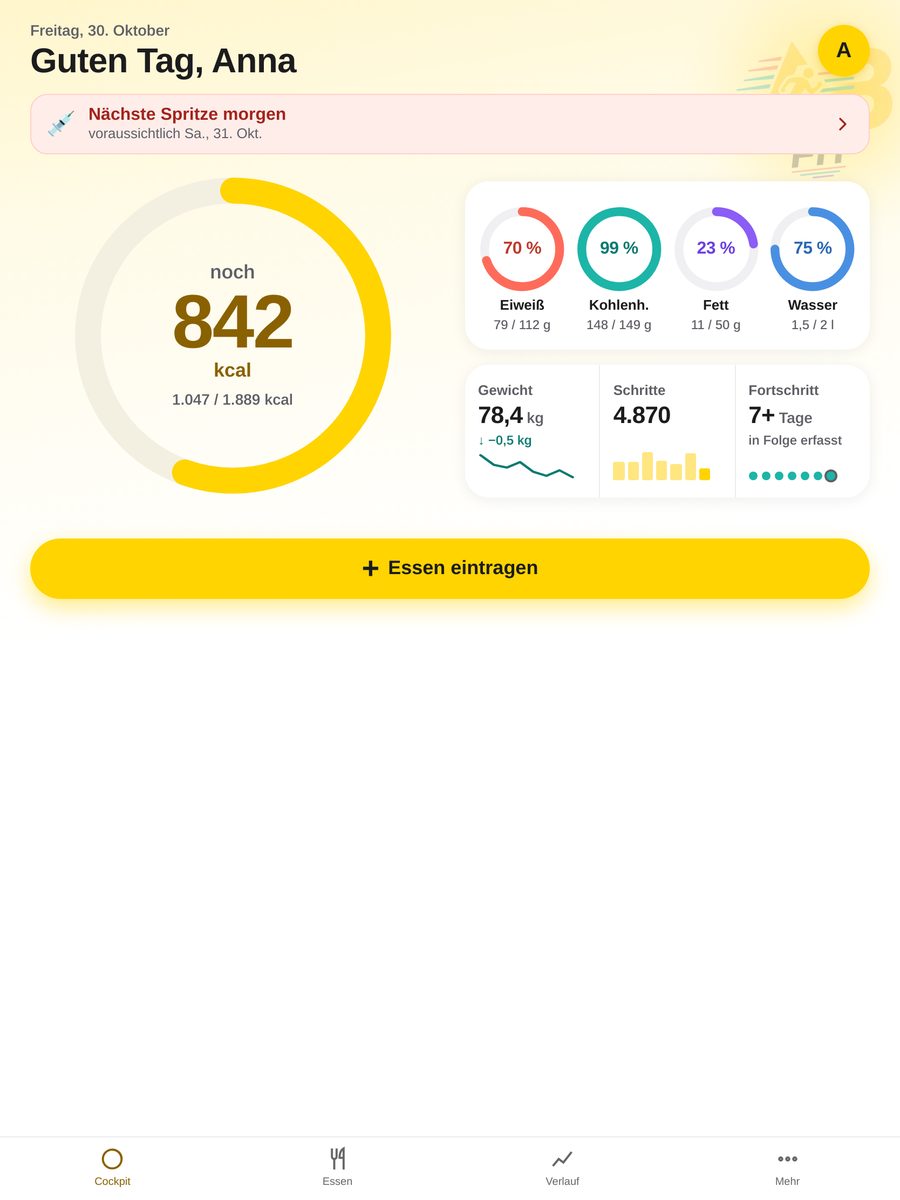
- iPhone / narrow screen: one column, the four tabs (Cockpit, Food, History, More) at the bottom.
- iPad in portrait (from about 768 px width): the Cockpit uses two columns – the large calorie ring on the left, the four rings and the card with weight, steps and progress on the right; the tabs stay at the bottom.
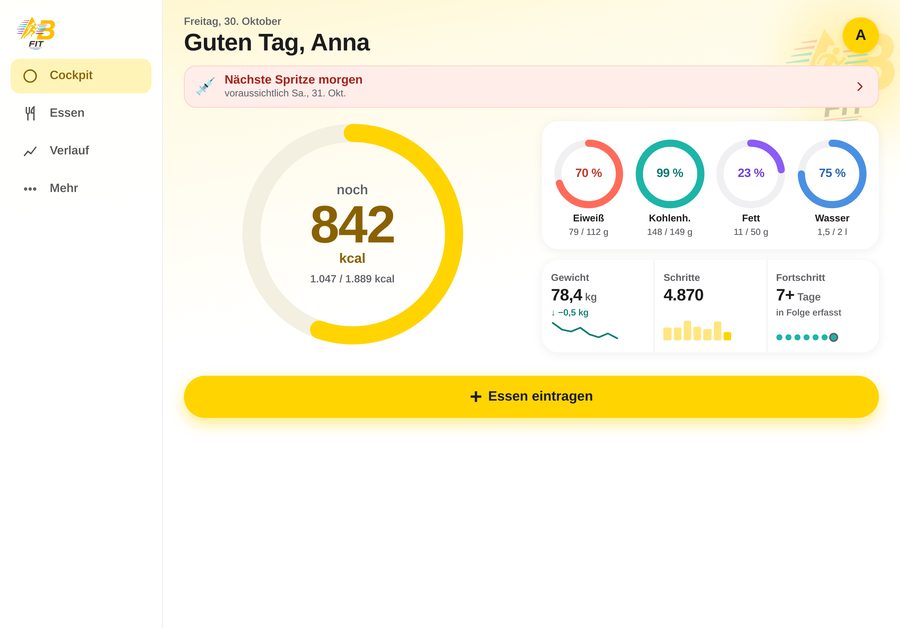
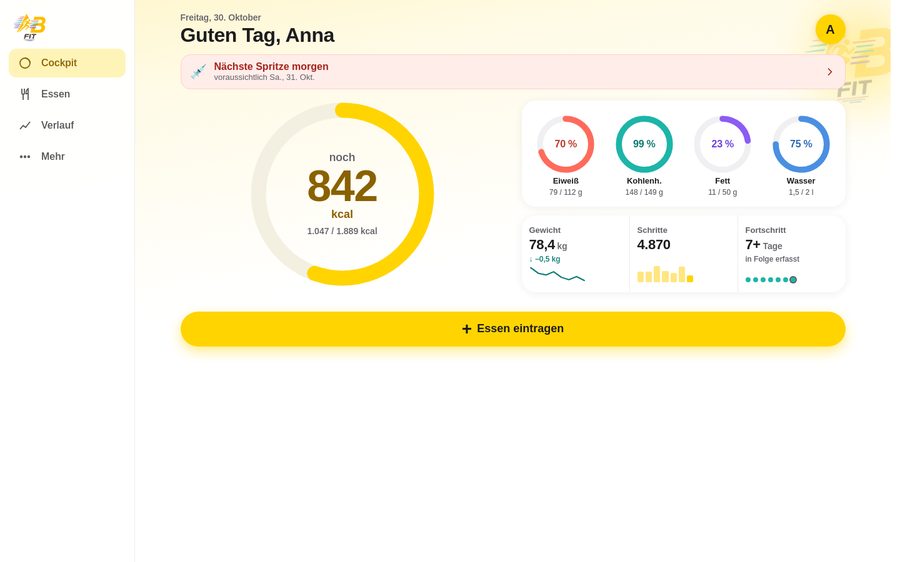
- iPad in landscape and computer (from about 1024 px): the tabs appear as a sidebar on the left, and the content has a calm, centered layout.
- On a computer you simply open ABfit in the browser via the same link and sign in with the same account.
20. Frequently asked questions
I logged something twice by accident.
Expand the meal → Select → tick the duplicates → delete. The buttons lock after the first tap so that this does not happen again.
The photo recognition got something wrong.
In the check list, tap the row and choose the right food, adjust the grams or remove the row with ✕ – only then add it. This also applies to recipe and nutrition label photos.
I did not finish everything – how do I deduct that?
Right after the photo entry tap “Photograph leftovers” (or later via the “Did not finish?” card in the Day overview), photograph the plate after eating, check the sliders and tap “Deduct leftovers”. You can undo it at any time via the entry → “Leftovers deducted” → “Undo deduction”.
My steps are not arriving.
Start the shortcut “ABfit Sync” by hand once and read the message. Check that Health access is allowed and “Allow Sharing Large Amounts of Data” is on. If necessary, enter the steps by hand under History → Activity.
Why is my daily goal higher than yesterday?
Activity (steps, sport, active calories) raises your budget for the day.
Can anyone else see my data?
No. Every account is separate. Do not share your password or Health key.
The app looks odd after an update.
Close ABfit completely (swipe up from the bottom edge) and open it again – then the new version loads.
Can ABfit tell me how much I should take?
No. The Medications page only stores what you enter. Please always ask your doctor about dosing.
Where did the “Overview” and the “Medications” go?
Both are still there. The former Overview is now called Day overview: tap the large calorie ring in the Cockpit or open More → Day overview. You open Medications via the medication hint in the Cockpit or under More → Log medication or Log & dose curve.
Is the guide also available in the browser?
Yes: More → Help shows a short help in the app; via “Open the full guide with pictures” you reach the help page with the Feature Overview and the User Guide. Both are also available as PDFs to download.